Setting up this integration allows you to:
- Import customers from NinjaRMM
- Import computers from NinjaRMM
- Manage all computers in NinjaRMM without deploying the ImmyBot Agent
- Create ImmyBot Role in NinjaRMM
Configure the following in general settings (Administration -> General -> Settings)
- Ninja Agent uninstall prevention -> OFF (Optional: This permission is only needed so ImmyBot can also uninstall the Ninja agent)
- Advanced Installer Options -> ON
Create a script in the NinjaRMM Automation library
(Administration -> Library -> Automation -> Add -> New Script)
Param(
    [Parameter(Mandatory=$true)]
    [string]$code
)

$bytes = [System.Convert]::FromBase64String($code)
$DecodedCommand = [System.Text.Encoding]::UTF8.GetString($bytes)

# Execute Script Content
iex $DecodedCommand
Write-Host "Ephemeral Agent started"
The script should be set to
- Name: ImmyBot
- Language: Powershell
- Operating System: Windows
- Architecture: All
- Run As: System
Note the Script ID
Before leaving the script, also create a Script Variable.
- Hit
+ Addnext toScript Variables. - Select the
String/Texttype. - Enter
Codeas the variable name. - Hit
Addto save it.
Get the script Id in the URL https://{region}.ninjarmm.com/#/editor/script/71 -> 71.
It will be needed as one of the parameters in the integration setup to run scripts.
Create the integration in ImmyBot
(Show More -> Integrations -> Add Integration -> NinjaRMM)
- Add the required parameters and authenticate the OAuthInfo parameter with a NinjaRMM user with sufficient privileges:
- Name: NinjaRMM
- Region: This is the subdomain
- ScriptID: From the URL in the script step above
- UseCustomClientApp: This is optional and not recommended
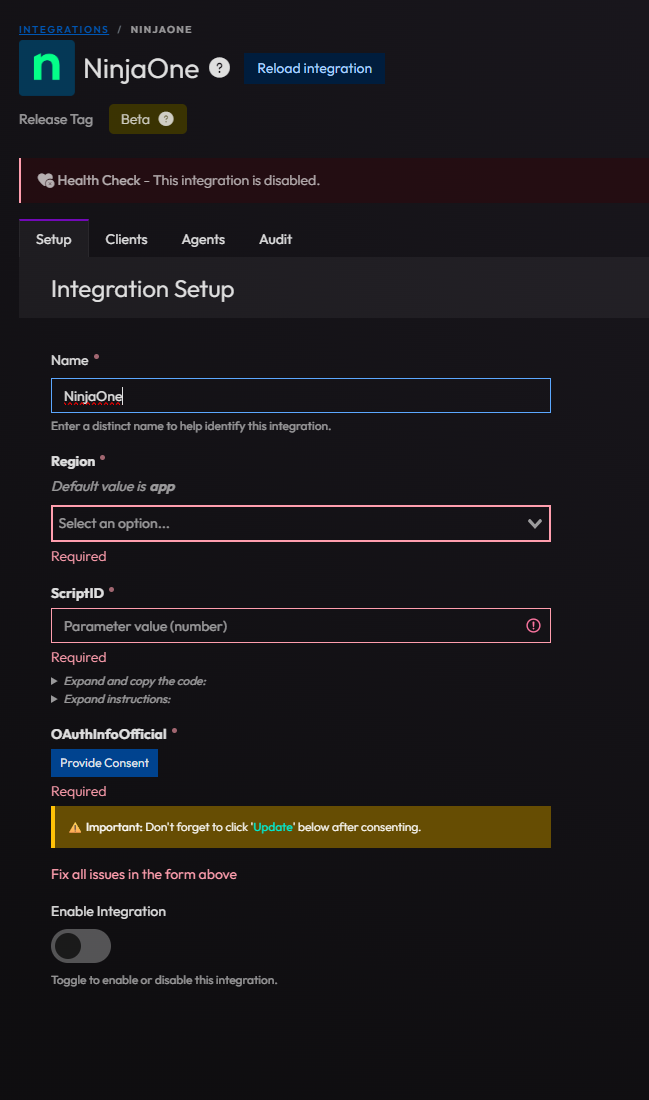
- Once that is filled out, click on Provide Concent, and follow the onscreen instructions.
- Once that is done click update and enable the integration.
Currently the UI element for the OAuthInfo parameter button will not persist when you refresh the browser window. This will not kill your integration, so just leave it as is.
Set up the Deployment in ImmyBot
- Click on
Deploymentsand then Click onNew - Select
Ninja RMM - Integrationfrom the Software / Task drop down - Select the radial button labeled
Installedunder theSoftware should be - Select the
Latestradial button underDesired Version - Select the radial button labeled
RequiredunderTarget Enforcement - Select the radial button labeled
Cross TenantunderTarget Scope - Select the radial button labeled
All ComputerunderTarget Type - Select the radial button labeled
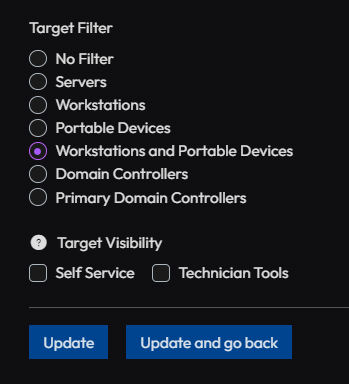
No FilterunderTarget Filter - Click on
Createto save your deployment.
Migrating to the official ImmyBot NinjaOne integration
You need to do this if you want to utlize the sliding refresh token provided by Ninja. This will prevent you from having to constantly consent through oAuth.
You only need to follow this if you created your integration prior to January 21, 2026.
You must be upgraded to ImmyBot .76.0 in order to utilize the official client app.
-
Click Provide Consent
-
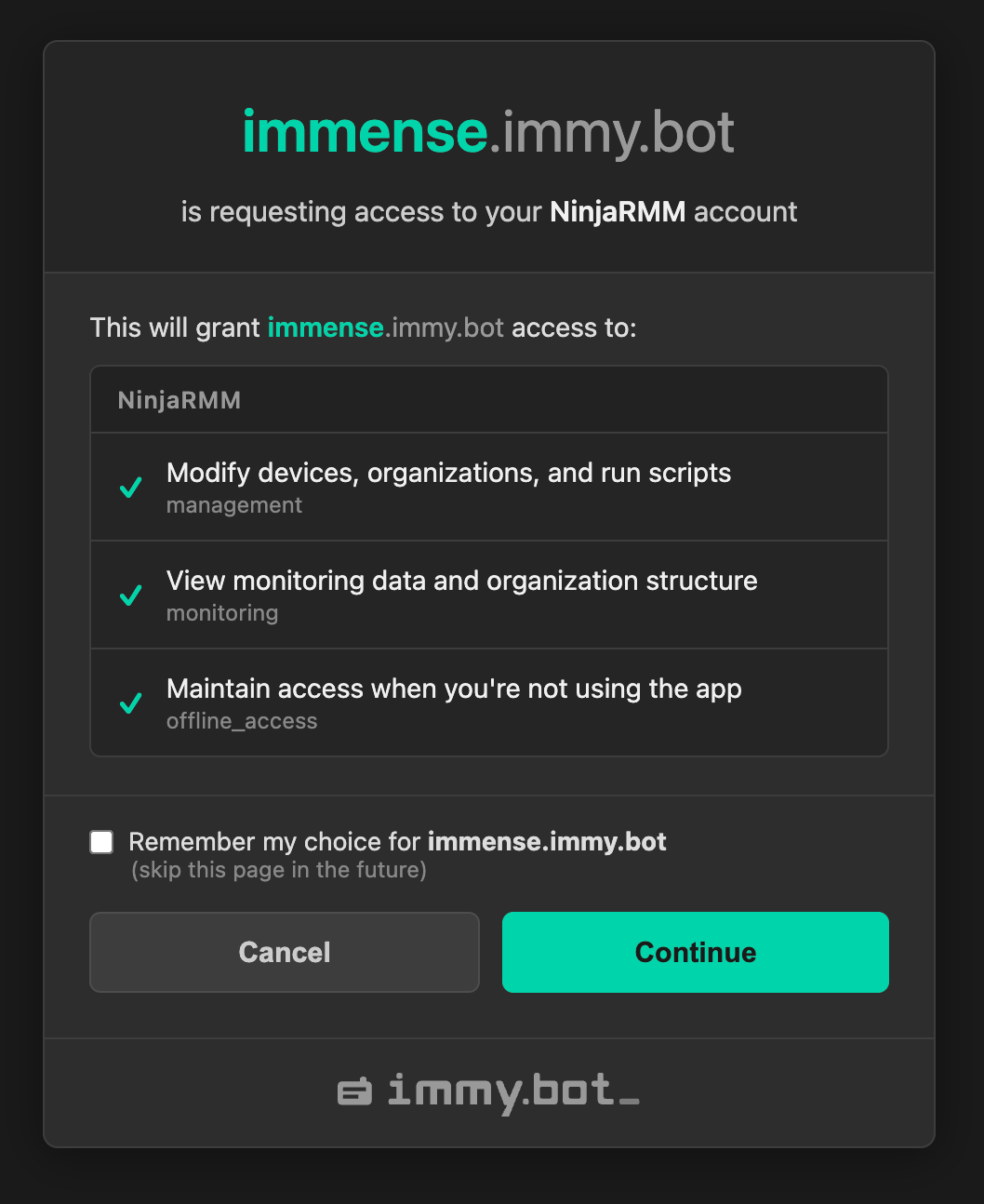
Continue through our consent page
-
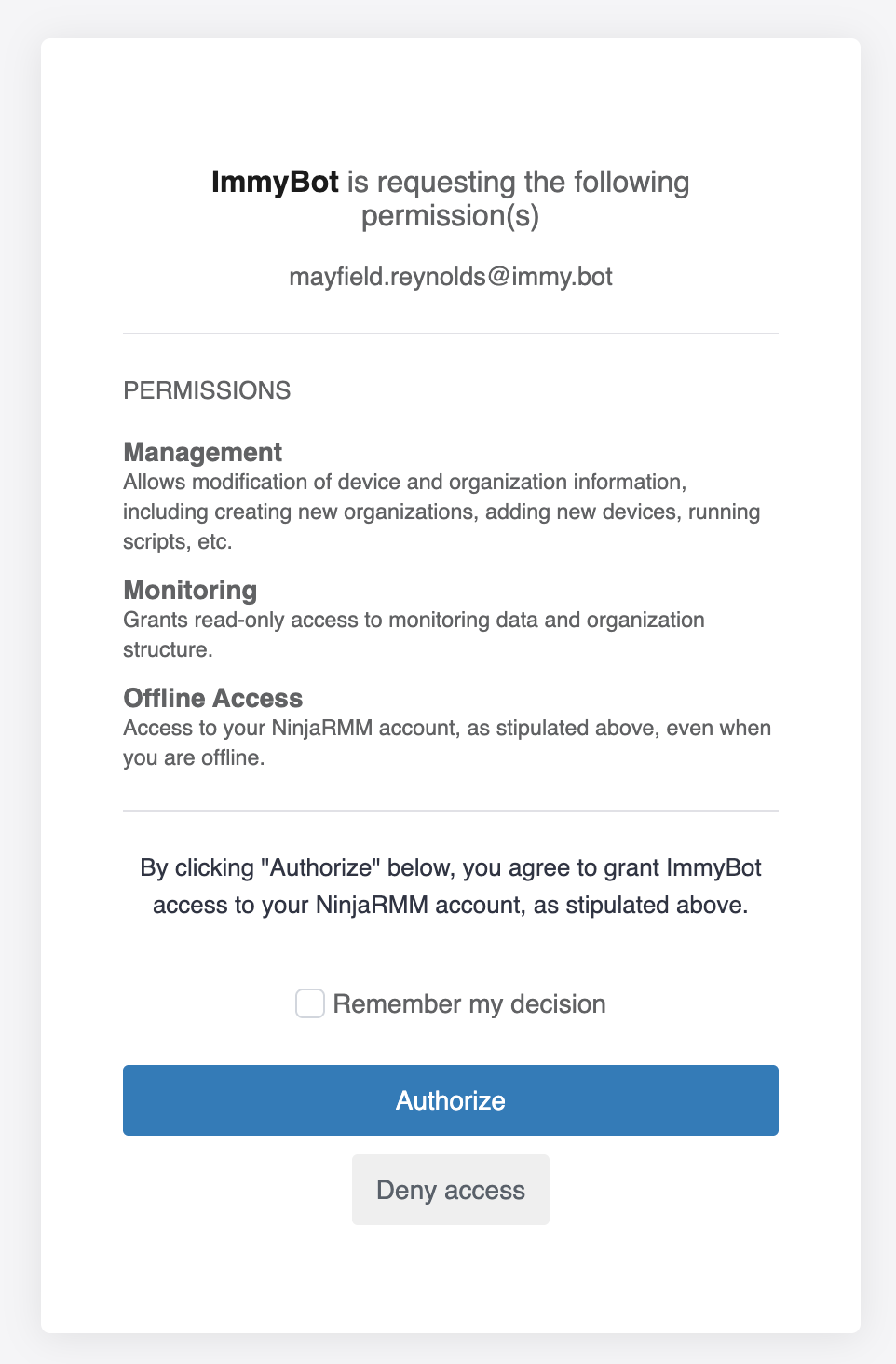
Continue through Ninja’s consent page
-
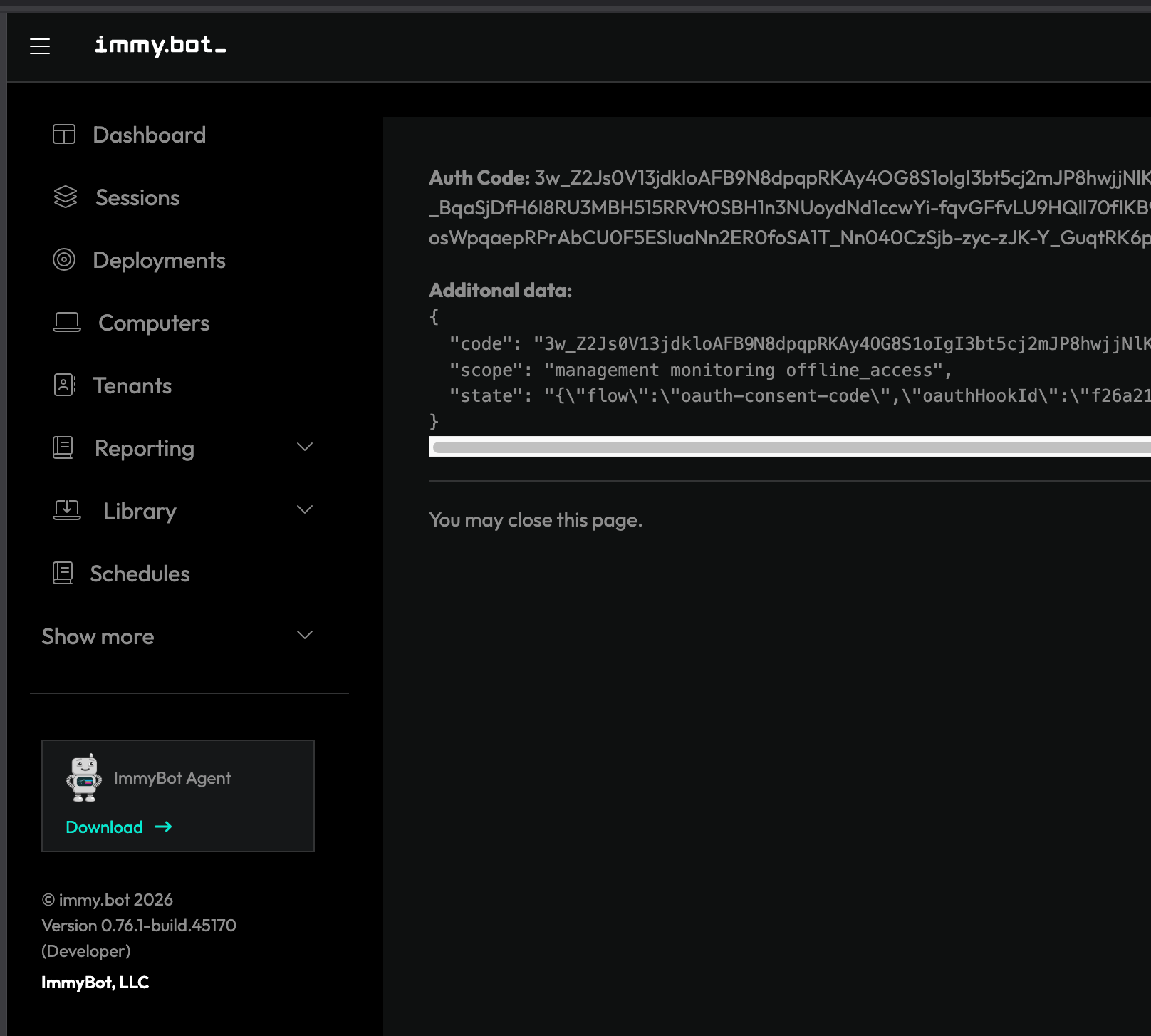
Once you get back to the confirmation page, close it to go back to the integration settings page
-
Finally, click Update
Congratulations! You’ve migrated to the official client app in Ninja for ImmyBot!