ImmyBot integrates with HaloPSA to sync assets and use PSA data to drive software deployment decisions. Once configured, you can:
- Deploy software to machines covered by a specific contract type
- Example: Deploy Huntress to all customers with a Managed Security contract.
- (Preferred) Deploy software to machines whose contract includes a specific recurring invoice item
- Example: Deploy SentinelOne to all computers whose client has SentinelOne as a recurring invoice line item.
- Sync computers to HaloPSA assets — match existing assets on configurable fields, or let ImmyBot create assets for unmatched computers (tagged with a
Created By Immybotcheckbox custom field). - Open ticket / technician tools inside Halo via custom tabs.
Create an ImmyBot Application under /config/integrations/api/applications
- Under the details section, select the Client ID and Secret Authentication Method
- Generate and copy the Client ID and Client Secret
- The API will need to have the API permissions below.
- The Login Type should be “Agent”, and you should select an “Agent to log in as”
- When selecting the “Agent to log in as” be sure it has the Agent permissions below.
Agent Permissions
The agent user must be part of the Team used for support and have the following permissions either from a Role or directly applied.
Feature Access Permissions
| Permission | Value |
|---|---|
| Tickets Access Level | Read Only |
| Clients Access Level | Read Only |
| Users Access Level | Read Only |
| CRM Access Level | Read Only |
| Assets Access Level | Read and Modify |
| Suppliers Access Level | Read Only |
| Items Access Level | Read Only |
| Sales Access Level | Read Only |
| Quotations Access Level | Read Only |
| Sales Orders Access Level | Read Only |
| Purchase Orders Access Level | Read Only |
| Billing Details Access Level | Read Only |
| Invoices Access Level | Read Only |
| Reporting Access Level | Read and Modify |
| Client Contracts Access Level | Read Only |
| Supplier Contracts Access Level | Read Only |
Tickets Permissions
| Permission | Value |
|---|---|
| Can view Unassigned Tickets | Yes |
| Can view Tickets that are assigned to other Agents | Yes |
| Can export tickets | Yes |
Billing Permissions
| Permission | Value |
|---|---|
| Can View Item Costs | Read Only |
| Can View Item Prices | Read Only |
| Can View Item SKU | Read Only |
API Permissions
| Permission | Value | Notes |
|---|---|---|
| read:customers | Yes | |
| read:contracts | Yes | Required for Contract Type and Recurring Invoice Item targeting |
| read:items | Yes | Required for Recurring Invoice Item targeting |
| edit:reporting | Yes | Required for Recurring Invoice Item targeting (runs a report to enumerate line items) |
| edit:items | Yes | Should not be needed > 2.99, API bug will not allow listing items without edit rights |
| read:invoices | Yes | |
| read:software | Yes | |
| read:tickets | Yes | Required for the Technician Tools feature |
| read:assets | Yes | Required for asset matching and sync |
| edit:assets | Yes | Required for asset creation and the immybot_managed custom field |
Plug in the Client ID and Client Secret in ImmyBot
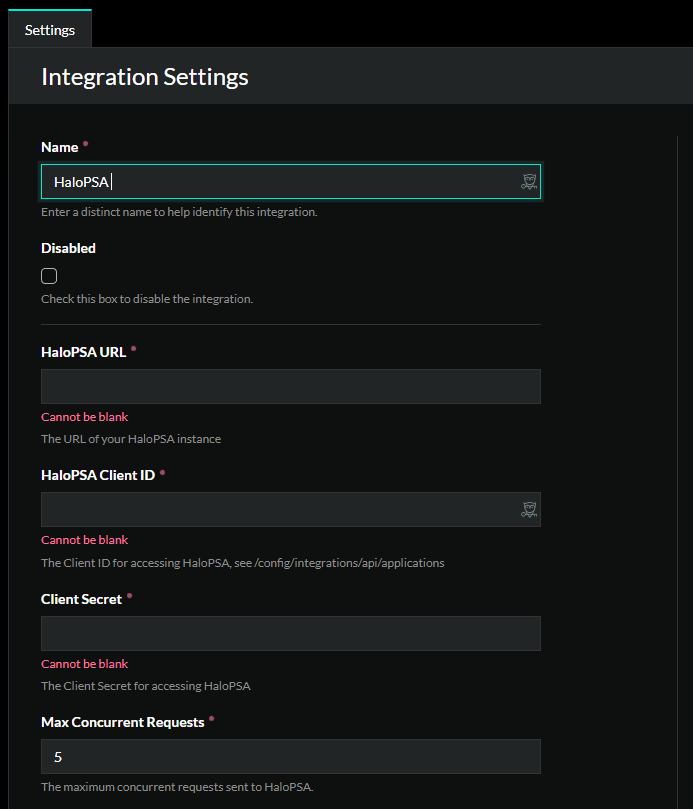
Create a HaloPSA Integration Link and fill in the Integration Settings.
Asset Integration
Once the link is created, ImmyBot can sync each managed computer to a HaloPSA asset. This is required for any workflow that targets software by contract type or recurring invoice item — ImmyBot needs a reliable mapping between the computer it manages and the client record in Halo.
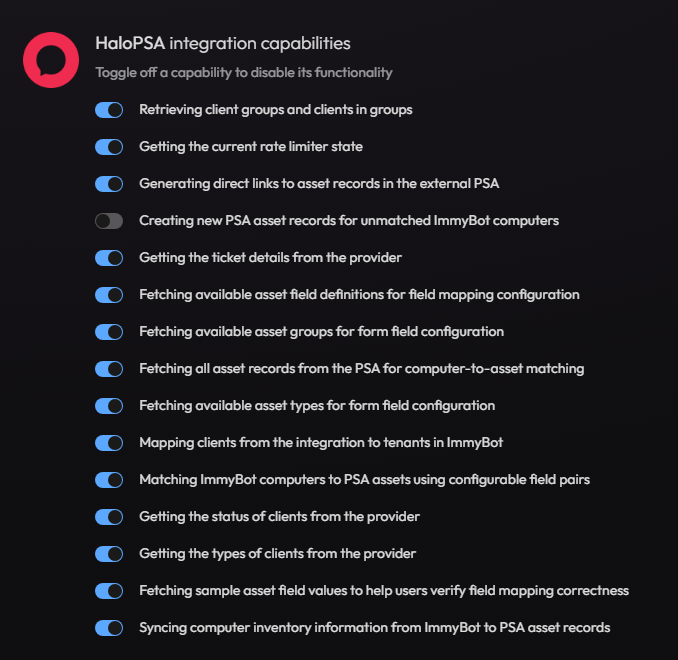
Enable the Asset Sync capability
On the integration link, open the Capabilities section and confirm that asset matching is enabled. Asset creation is disabled by default on new links to prevent accidentally creating a large volume of asset records before you’ve configured match fields — enable it after you’ve verified matching works.
Configure Match Fields
Match fields tell ImmyBot how to compare an ImmyBot computer to a Halo asset. If no match fields are configured, the table shows a Use Recommended button that populates the Halo-recommended defaults:
| Halo Field | ImmyBot Field |
|---|---|
| Inventory Number | Computer Name |
When you select a field, ImmyBot fetches sample values from Halo (and from the ImmyBot side) so you can verify the mapping is matching real records before you save.
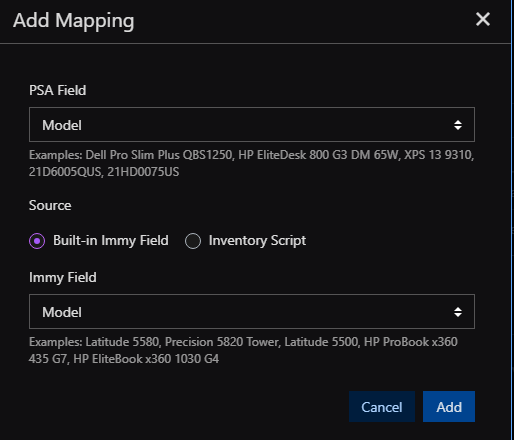
Tip: Serial Number is a common second match field, but it lives in a custom field that varies by Halo tenant. Add it manually from your tenant’s custom field list if you want to match on it.
Asset Creation and the immybot_managed Field
When asset creation is enabled, ImmyBot creates a Halo asset for each managed computer that doesn’t match an existing asset. The first time creation runs against a tenant, ImmyBot will:
- Look up a custom field named
immybot_managedviaGET /api/field. - Create the field as a boolean if it doesn’t exist.
- Set
immybot_managed = trueon every asset ImmyBot creates.
This lets you filter and report on ImmyBot-created assets inside Halo without disturbing assets you matched to existing records.
Opening an Asset in Halo
The Provider Assets table includes an external-link icon next to each asset name. Clicking it opens the matched asset record directly in HaloPSA in a new tab.
Targeting Software by Contract
With asset sync configured, you can create Device Groups / Targets in ImmyBot that resolve to machines based on Halo PSA data.
By Contract Type
Use this when all customers under a particular contract type should receive a piece of software.
Example: Deploy Huntress to every customer whose contract type is Managed Security.
- Create a new Device Group backed by the HaloPSA integration.
- Select Contract Type as the grouping.
- Pick the contract type (e.g., Managed Security).
- Target your Huntress software deployment at the new group.
By Recurring Invoice Item (preferred)
Use this when a contract type is too broad and you bill customers per-device or per-product for the software in question. This is the preferred approach because it tracks billing directly — every machine you deploy to is a machine you’re actually invoicing for.
Example: Deploy SentinelOne only to computers whose client has SentinelOne on a recurring invoice line item.
- Create a new Device Group backed by the HaloPSA integration.
- Select Recurring Invoice Item as the grouping.
- Pick the item (e.g., SentinelOne).
- Target your SentinelOne software deployment at the new group.
ImmyBot runs a Halo report (edit:reporting permission) to enumerate clients who have the selected item on an active recurring invoice, then limits deployment to computers belonging to those clients.
Embedded Ticket Tab
HaloPSA version 2.125.5 introduced a new feature called Custom Tabs. You can configure these Custom Tabs to point to a web address, similar to an iframe.
Within HaloPSA, configure the tab as follows:
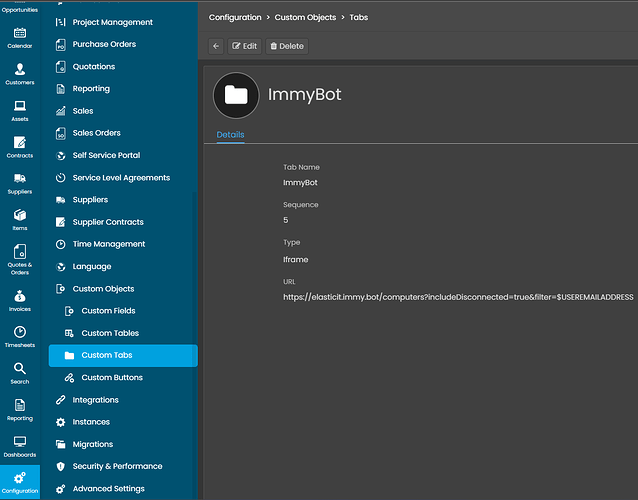
This tab will then show on all tickets in the system, like this:
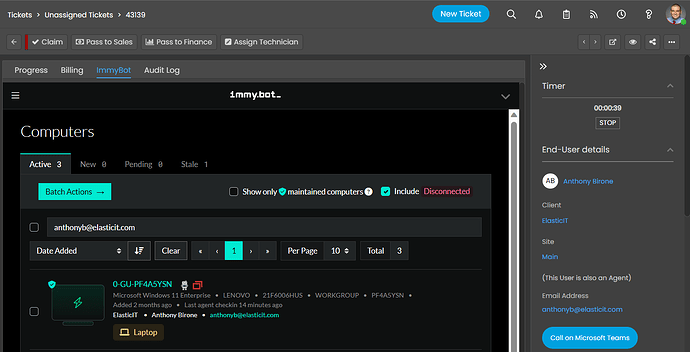
Technician Tools
HaloPSA version 2.125.5 introduced a new feature called Custom Tabs. You can configure these Custom Tabs to point to a web address that is rendered as an iframe.
Within HaloPSA, configure the tab as follows:
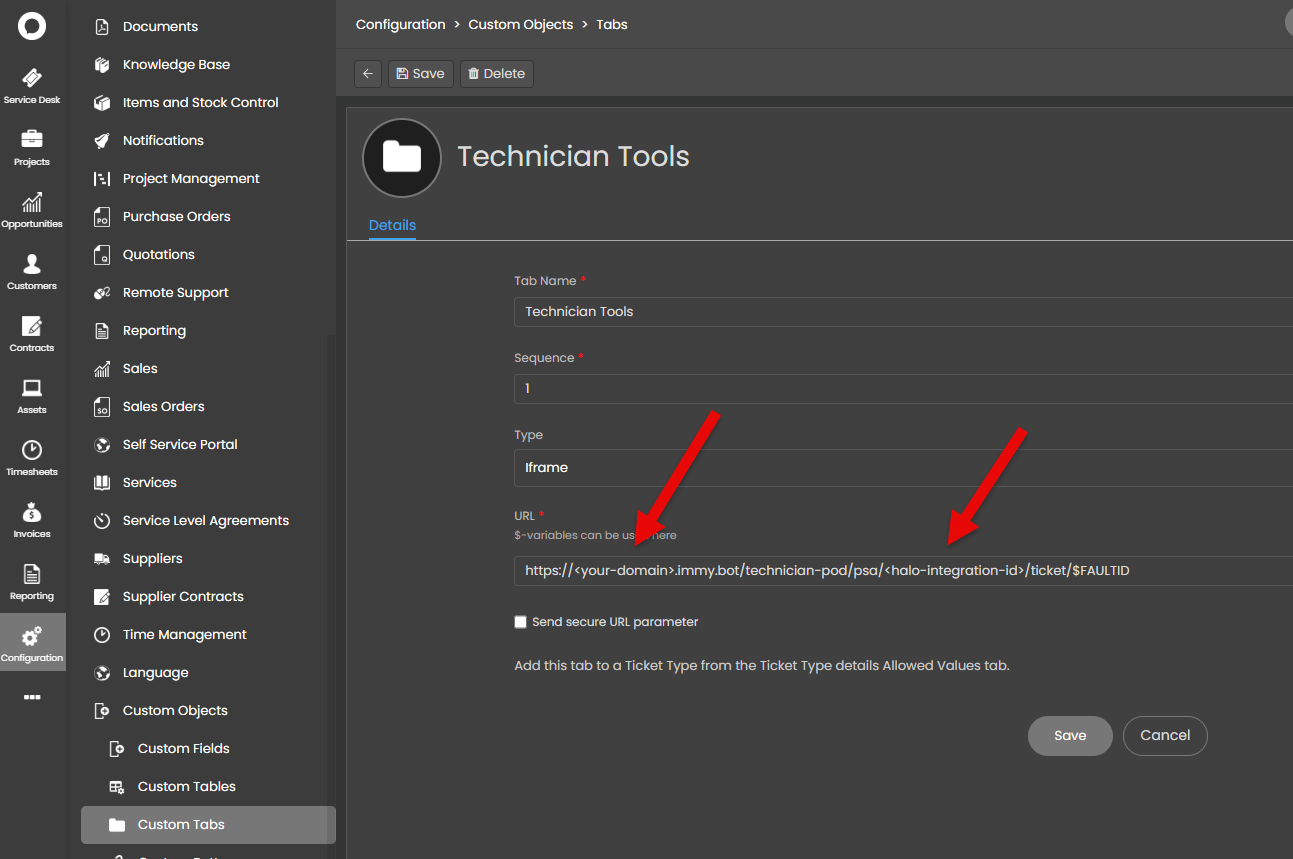
Copy the url template:
https://<your-domain>.immy.bot/technician-pod/psa/<halo-integration-id>/ticket/$FAULTID
The URL is specific to your instance. You’ll need to replace <your-domain> with your domain and <halo-integration-id> with your halo integration id. This id can be found here:
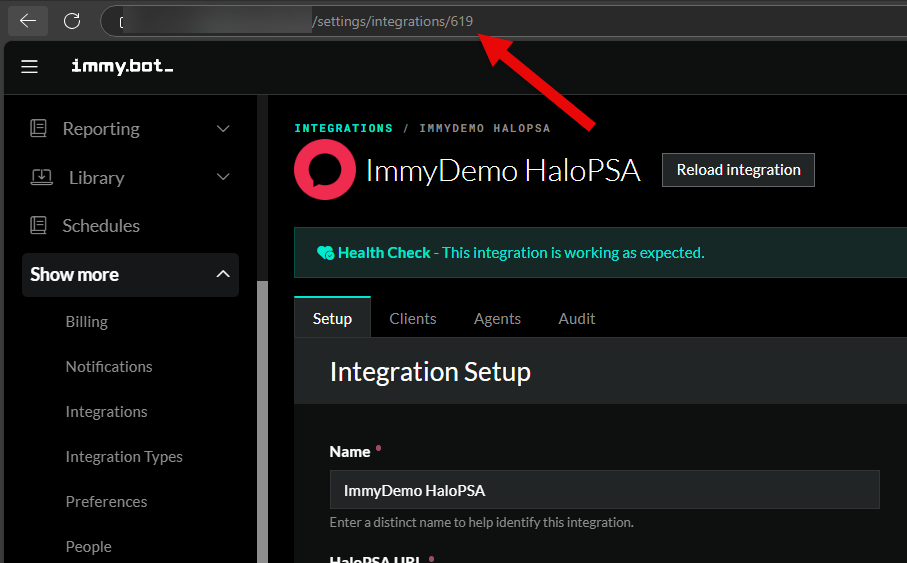
After you setup the tab, navigate to a ticket and select the tab with the name you just created. It should load the technician tools page of immy.bot.