Click to learn more about adding this feature
Maintenance Sessions
Prevent user-facing issues with automated maintenance
Maintenance sessions automatically install missing apps, update outdated software, and correct broken configurations before they become support issues in your ticket queue.
You define the standard. ImmyBot maintains it.
ImmyBot checks every endpoint against your deployment logic, targeting rules, and enforcement settings to keep machines in spec.
Problems get corrected before users notice
Software gets removed. Updates fall behind. Configurations drift. None of that matters because ImmyBot brings machines back to standard before users ever feel the impact.
Visibility from start to finish
Each maintenance session comes with robust logs, giving techs visibility into actions taken, results returned, and the endpoint’s final state.
Scheduled or on-demand
Schedule maintenance sessions around when they make sense for your client or run them manually when something needs to happen now.

The Problem
The machine was right when you handed it off. What about now?
Every MSP knows the workstation was right when it was deployed. The problem is what happens after that.
Outdated apps become vulnerable. Security agents get removed. Users interrupt updates. Scripts fail quietly. One client needs an exception. Another needs a line-of-business app pinned to a specific version. And by the time a ticket comes in, your tech is back to remoting in, checking manually, and trying to figure out what changed.
That’s how “standardized environments” turn back into a constant stream of “one-off” troubleshooting.

The ImmyBot way
Define the standard once. Let ImmyBot keep enforcing it.
Gone are the days of stitching together RMM scripts, patch schedules, manual checks, and crossed fingers. ImmyBot gives your team one structured way to maintain the computers you manage.
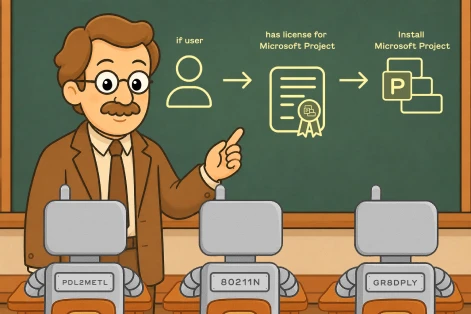
Each maintenance session evaluates the endpoint against your deployment logic, checks its current state, builds a plan, runs the required actions, verifies the result, and records what happened.
Techs aren’t left guessing what belongs on the machine, what changed, what failed, or whether the endpoint is back in spec. They get clear session history with actions performed, status, logs, timing, and affected deployments.
How maintenance sessions work
Your next maintenance window could run all by itself
Start a free trial and see how ImmyBot keeps endpoints aligned without the usual manual effort.
Built for hands-off maintenance, not random script execution
Required deployments
Software or tasks set as “required” are automatically applied during maintenance sessions.
Ad hoc when you need it
Trigger maintenance manually on one or many computers when a specific issue needs attention now.
Reboot control
Choose whether to suppress reboots, reboot if necessary, or force a reboot when starting an ad hoc maintenance session.
Deployment ordering
Control when maintenance items run: beginning, unordered middle, or end of session. ImmyBot recommends keeping computer configuration items at the beginning and dependency-sensitive items near the end.
Notifications
ImmyBot can send maintenance notifications to users through ad hoc session options or schedules once SMTP and branding are configured.
Session history
View all maintenance sessions globally from the sessions tab, or review sessions for a specific computer from that computer’s sessions tab.
1900+
pre-written scripts
2 hours
average time saved
onboarding a computer
74M+
Deployment sessions per year

“We wouldn’t have been able to grow as fast as we did without ImmyBot.”

—Anthony Birone Founder of ElasticIT

Frequently Asked Questions
How is this different from our RMM scripts?
Your RMM can run scripts, but scripts often become fire-and-forget. ImmyBot maintenance sessions are built around desired state: what should be installed or configured, who it applies to, when it should run, whether it succeeded, and what the computer looked like afterward.
Can we run maintenance automatically?
Yes. Automated maintenance sessions are handled through schedules. ImmyBot also recommends running scheduled maintenance at most once a week across the instance, batching large environments across different days when needed.
Can we run maintenance manually?
Yes. You can run maintenance on a single computer or select multiple computers and run maintenance through batch actions.
What happens during a maintenance session?
ImmyBot identifies applicable deployments, checks the current state of the computer, creates a plan, executes the plan, checks the current state again, and reports the results.
Can we test before rolling out broadly?
Yes. You can test deployments against a limited target first, run a maintenance session, verify the result, and then expand to production. ImmyBot also supports testing with Windows Sandbox, which gives you a temporary, isolated Windows environment where you can validate deployments and configurations without affecting a production machine. The Sandbox computer can appear in ImmyBot, be assigned to a customer and user, and run an onboarding maintenance session that applies applicable deployments.
Can we use canary groups?
Yes. ImmyBot’s best-practice docs recommend using a Canary tag and schedule to run maintenance against a predetermined group of computers before wider release.
Can maintenance sessions send user notifications?
Yes. Maintenance notifications can be configured through ad hoc session options or through schedules, with SMTP and branding configured first.
Where do we see what happened?
Maintenance sessions can be reviewed from the Sessions area, filtered by status, computer, tenant, or date range. Session details include actions performed, success or failure status, detailed logs, duration, timing, and affected deployments.
1900+
pre-written scripts
2 hours
average time saved
onboarding a computer
74M+
Deployment sessions per year
“We wouldn’t have been able to grow as fast as we did without ImmyBot.”
—Anthony Birone Founder of ElasticIT
Ready to try it for yourself?
Try out every feature of ImmyBot firsthand with our free trial, and discover exactly how it can streamline your workflow—risk-free and commitment-free.
Start your free trial
14-day free trial. No credit card required.