It is outside of the scope of support for ImmyBot to assist with custom scripting. You’re more then welcome to send your questions to support, and we will answer as best as we can to guide you in the right direction.
This comprehensive guide explains how to create and manage scripts in ImmyBot, including best practices, script types, execution contexts, and helper functions.
Understanding Script Flow
Best Practices
Follow these best practices to create effective, maintainable scripts in ImmyBot:
Code Organization and Reuse
- Search Existing Scripts: Use Ctrl+Shift+F or Ctrl+P in our script editor to find scripts that already do what you want. There’s a lot of good logic in the built-in function scripts.
- Don’t Repeat Yourself: Leverage function scripts to reuse code across multiple scripts.
- Modular Design: Break complex scripts into smaller, reusable functions.
Testing and Debugging
- Test Environment: Have a dedicated machine you can test on.
- Backup Test Machine: Have a separate machine to test your sanity if you accidentally break your first test machine.
- Use the Debugger: Test by clicking Open Debugger in the logs:
- This gives you all available parameters on the
Script Targetpane of the editor so you can test the script in its natural context - You can quickly revise the script here until it works as expected
- Saving the script here saves it permanently
- This gives you all available parameters on the
Security and Best Practices
- Avoid Hardcoding Paths: Don’t hardcode paths to installer or license files; instead rely on
$InstallerFileand$LicenseFilePath. - Secure Sensitive Information: Don’t hardcode license values or other sensitive information; instead utilize
$LicenseValueor a custom parameter. - Generic Installers: Avoid (where possible) installers that have client-specific licenses or customizations built in:
- If a generic installer isn’t available (e.g., BitDefender), use Dynamic Versions (and potentially a URL parameter) to specify the download URL per customer or use an API to find the URL for the given customer.
- If the URL requires authentication, use a custom Download script to perform the authenticated download (e.g., CrowdStrike/SentinelOne).
Verification and Error Handling
- Verify Script Actions: Include code to verify that the script did what it intended to do:
- For Tasks, implement a "test" script
- For Software, make sure your Detection method works, and optionally implement a Test script to verify things are in working order
- When a software Test script returns
$false, ImmyBot performs the software’s configured repair strategy to fix the installation (by default, uninstall then reinstall). The repair strategy is configurable per software: Uninstall/Install, Install Over, or a Custom repair script.
- Use Metascripts: Especially if your script needs to restart the machine or access APIs like IT Glue and therefore will contain sensitive data like API keys.
- Proper Error Handling: Use
throw "The bad thing that happened, what user should do"to prevent cascading failure. That message will be shown to the user in a prominent location so they can take corrective action. - Task Compliance: Tasks have a "test" mechanism that should return
$true(Compliant) or$false(Not Compliant) to indicate compliance.
While it may be cumbersome to write additional logic to verify your work, the reward of knowing exactly how many machines are or are not compliant with your desired state is worth it. Without it, you are flying blind. With it, you know exactly how many machines require additional attention, giving you the opportunity to write better code that handles more edge cases. See the Helper Function section to see how we make your life easier.
Script Types
ImmyBot supports various script types, each serving a specific purpose in the automation workflow:
| Script Type | Description |
|---|---|
| Software Detection | Determines if software is installed and its version |
| Software Version Action | Handles installation, uninstallation, and updates |
| Task / Maintenance Task | Configures and tests endpoint settings |
| Metascript Deployment Target | Runs on the server to determine deployment applicability |
| Filter Script Deployment Target | Returns specific computers for targeted deployments |
| Device Inventory | Collects information about managed devices |
| Function | Reusable code blocks for other metascripts |
| Dynamic Version | Retrieves latest software version information |
| Download Installer | Custom logic for downloading software installers |
| Module | PowerShell modules for extended functionality |
| Preflight | Runs before maintenance and after reboots to check endpoint is ready for script execution |
| Integration | Connects ImmyBot to external systems |
| ImmySystem | Built-in ImmyBot system scripts. Read-only; cannot be created, renamed, or deleted |
Software Detection
Software Detection scripts are used to determine whether an existing software is present and what version it may be.
Avoid custom detection scripts where possible. Software with a custom detection script can’t be matched to pre-existing inventory data on the machine, making it difficult to report on how many machines have the software already. Further, the “Assignable” software tab won’t work since that matches the detection method to existing inventory data. However if your software doesn’t create an entry in Add/Remove Programs, you may have no choice but to use a custom detection script. It is important to note that a lot of software creates hidden entries under Add/Remove Programs, ImmyBot inventories these hidden entries, further reducing the need for custom detection scripts.
When you write your custom detection script, your best bet is to find a exe or dll file under Program Files<software name> or ProgramData<softwarename> that shows the version when you right click on it and go to Properties. To retrieve this version use a script similar to the following:
Get-Command "C:\Program Files*\<softwarename>\mysoftware.exe" -ErrorAction SilentlyContinue | %{ $_.Version.ToString() }
If such an EXE does exist, there is a helper function that can simplify the script using Detect-VersionFromExe
If there is no exe or dll file containing the version, perhaps there is a .ini, .config, .json or .xml file that contains the installed version.
If all else fails, you can simply return "1.0" if a file associated to the software exists.
These scripts can return either a System.Version or a String — ImmyBot takes the last value the script outputs, converts it to a string, and parses it. For example
$version = [String]"1.2.3"
return $version
and
$version = [System.Version]"1.2.3"
return $version
will both work. If the script’s output cannot be parsed into a version, detection fails. $null can be returned when no version is found by the custom detection script, ImmyBot will see that result as the software is not installed.
Software Version Action
These scripts can be used on a software version for installation, post-installation, uninstallation, post-uninstallation, testing, and upgrade scripts.
ImmySystem
ImmySystem scripts are built-in scripts that belong to ImmyBot itself. The platform runs them internally as part of its own operations — for example, the Get-TimeZoneAndActiveHours system script, which ImmyBot runs against computers to determine the machine’s time zone and Windows active hours so maintenance can be scheduled around them.
These scripts are read-only and protected:
- You cannot create ImmySystem scripts (the backend rejects them).
- You cannot rename or delete an ImmySystem script.
Maintenance Task
These scripts are available only on maintenance tasks.
Metascript Deployment Target
These scripts are used on deployments as a target.
A Metascript deployment target runs on the ImmyBot server and is evaluated once per computer, with that computer’s context (its properties, primary user, and tenant) available to the script. Each evaluation outputs $true or $false to decide whether that one computer is included in the deployment’s target:
- $true — the computer applies to this deployment.
- $false — the computer does not apply to this deployment. The script’s last output value is what ImmyBot reads as the result, so the script should output exactly one boolean and nothing else after it.
Metascript deployment targets are often the wrong tool for the job. The script runs once for every computer the deployment could apply to, on every deployment resolution — a deployment targeting hundreds of machines runs the script hundreds of times, which is slow and adds avoidable load. Prefer a built-in target (tag, tenant, device group, etc.) or a Filter Script — which evaluates all computers in a single run — whenever one can express the same condition. Reach for a Metascript target only when the decision genuinely requires per-computer logic that nothing else can express, such as consulting an external system or inspecting state only Invoke-ImmyCommand can reach.
Filter Script Deployment Target
These scripts are used on deployments as a target.
They must return a Computer[] array when running in Legacy filter script mode.
The deployment will only apply to computers specified in the returned array.
Filter scripts support two execution modes:
- Legacy — the filter script must return a
Computer[](PSComputer[]) array of the computers the deployment should apply to. Legacy filter scripts do not use caching. - Optimized — the filter script must return an
int[]of computer IDs instead. This mode uses caching to improve performance.
Script Execution Contexts
A script will have a specific execution context. This context determines how the script gets run.
System
The script runs on the computer under the system user.
User (CurrentUser)
The script runs on the computer under the currently logged-on user. The UI refers to this context as "User", but it is still the CurrentUser context, and a user must be logged on for the script to run. If no user is logged on when the script needs to run, it will be skipped for that computer (this can be overridden on a per-call basis for Metascripts calling Invoke-ImmyCommand -Context User).
Metascript
The script runs on the server in the context of a specific computer.
Cloudscript
The script runs on the server in the context of a specific tenant.
Variables
Avoid setting these variables yourself or having variables with similar names.
The complete list of variables available in a given session can be found in the script editor — open the Script Target pane and check the Variables section.
$ActionType
[string] The type of maintenance action the script is running for, e.g. [ "Install" | "Update" | "Uninstall" | "Reinstall" | "Download" | "Downgrade" | "NoAction" | "TaskEnforce" | "TaskMonitor" | "TaskAudit" ]
Accessible in
- Software Detection
- Software Version Action
- Maintenance Task
$AzureTenantId
[string] The Azure Principal Id of the computer’s tenant.
Accessible in
- Software Detection
- Software Version Action
- Maintenance Task
- Metascript Deployment Target
- Filterscript Deployment Target
$ComputerName
[string] Name of the computer the session is running against
Accessible in
- Software Detection
- Software Version Action
- Maintenance Task
- Metascript Deployment Target
$DesiredState
The desired software state configured on the deployment the script is running for: LatestVersion, ThisVersion, AnyVersion, NewerOrEqualVersion, OlderOrEqualVersion, UpdateIfFound, NotPresent, or NoAction. Note: in System and CurrentUser context scripts the value surfaces as its underlying number (0 = NewerOrEqualVersion, 1 = NotPresent, 2 = AnyVersion, 3 = ThisVersion, 4 = OlderOrEqualVersion, 5 = LatestVersion, 6 = NoAction, 7 = UpdateIfFound) rather than its name.
Accessible in
- Software Detection
- Software Version Action
$DetectionString
[string] String used to find the software in the registry
Accessible in
- Software Version Action
$DisplayName
[string] Display Name of the Software Version
Accessible in
- Software Version Action
$DisplayVersion
[string] The version of the software being deployed, e.g. 1.2.3.4
Accessible in
- Software Version Action
$InstallerFile
[string] Full path to the installer file itself
Accessible in
- Software Version Action
$InstallerFolder
[string] Full path to the folder the installer file can be found in
Accessible in
- Software Version Action
$InstallerLogFile
[string] Suggested full path for log file. When used Immy will get the content of this file for you and display it in our logs.
Accessible in
- Software Version Action
$IsPortable
[boolean] ‘True’ or ‘False’ indicating whether the current computer is a laptop/tablet
Accessible in
- Software Detection
- Software Version Action
- Maintenance Task
- Metascript Deployment Target
$LicenseFilePath
[string] Full path to the license file for the software (from the Deployment) Note: Software must be marked ‘Licensed’ and Software Version must indicate that it requires a License File and an Deployment applicable to this user/computer must specify a license file.
Accessible in
- Software Version Action
$LicenseValue
[string] From Deployment. Used for software that requires a key. Alternative usage could be to use this to hold additional command line parameters to customize installation for different computers. Software must be marked as Licensed for this variable to be replaced.
Accessible in
- Software Version Action
$Method
[string] Will be a value consisting of [ "get" | "set" | "test" ] that can be used in Combined Task scripts.
Accessible in
- Maintenance Task
$PrimaryPersonAzurePrincipalId
[Guid] User’s unique identifier in Azure
Accessible in
- Software Detection
- Software Version Action
- Maintenance Task
- Metascript Deployment Target
$PrimaryPersonEmail
[string] Mail Address of the person that most frequently uses this computer
Accessible in
- Software Detection
- Software Version Action
- Maintenance Task
- Metascript Deployment Target
$ProductCode
[string] Product code of the version being deployed
Accessible in
- Software Version Action
$RebootPreference
[string] The session’s reboot preference, e.g. [ "Force" | "Normal" | "Suppress" | "Prompt" ].
Accessible in
- All script types
$SoftwareName
[string] Name of the Software
Accessible in
- Software Detection
- Software Version Action
$TenantName
[string] Name of company the computer belongs to
Accessible in
- Software Detection
- Software Version Action
- Maintenance Task
- Metascript Deployment Target
$UpgradeCode
[string] Upgrade code of the software
Accessible in
- Software Detection
Metascript Helper Functions
We provide helper functions for common tasks like Registry and configuration file manipulation, running installers, restarting computers, and scraping Dynamic Versions
When used in the context of a Task, these functions honor the $method variable containing the mode the script should be run in (‘test’, ‘set’, or ‘get’)
These must be run from the Metascript context
Get-WindowsRegistryValue | RegistryShould-Be
Overview
Get-WindowsRegistryValue fetches the value of the specified Path and Name, and RegistryShould-Be tests and sets the value, creating missing keys/values if required
On average this saves 8-10 lines of PowerShell per registry value and makes your code significantly more readable
Usage
Get-WindowsRegistryValue -Path <string> -Name <string> [-LimitToSID <string[]>] [-IncludeDefaultProfile] [-LimitToLoggedOnUser] [-LimitToPrimaryUser]

Get-WindowsRegistryValue -Path <string> -Name <string> | RegistryShould-Be [-Value <object>] [-Type <string>]
RegistryShould-Beaccepts the output ofGet-WindowsRegistryValuefrom the pipeline.-Valueis the desired value. Passing$nullremoves the value.-Typespecifies the registry value type used when the value must be created:String,ExpandString,Binary,DWord,MultiString, orQword.-LimitToSID,-IncludeDefaultProfile,-LimitToLoggedOnUserand-LimitToPrimaryUsercontrol which user profiles are read when targetingHKCU.- When used in the context of a Task, both functions honor
$method— they test intestmode and apply changes insetmode.
Example 1 – Application setting from a parameter
This assumes you have a parameter called ServerAddress
Get-WindowsRegistryValue -Path "HKLM:\Software\MySoftware" -Name "ServerAddress" | RegistryShould-Be -Value $ServerAddress
Example 2 – Create a policy value with a specific type
Get-WindowsRegistryValue -Path "HKLM:\SOFTWARE\Policies\Microsoft\Windows\OOBE" -Name "DisablePrivacyExperience" | RegistryShould-Be -Value 1 -Type DWord
HKCUShould-Be
Overview
Like RegistryShould-Be, but applies the desired value across every user profile — pipe in the output of Get-WindowsRegistryValue, which includes the per-profile information HKCUShould-Be needs.
Usage
Get-WindowsRegistryValue -Path <string> -Name <string> | HKCUShould-Be [-Value <object>] [-Type <string>] [-AsHashtable]
-Valueis the desired value (first positional parameter). Passing$nullremoves the value.-Typespecifies the registry value type used when the value must be created.-AsHashtablereturns the per-profile results as a hashtable, e.g. for further processing.- When used in the context of a Task, it honors
$method— it tests intestmode and applies changes insetmode.
Example – Ensure a policy is set for all users
Get-WindowsRegistryValue -Path "HKCU:\Software\Policies\OneDrive" -Name EnableADAL | HKCUShould-Be 1
FileShould-Be
Overview
This accepts the source file path as input and verifies the files exists in the destination path, overwriting if the hashes don’t match
Usage
$SourceFilePath | FileShould-Be -InPath <string> [-WithName <string>]

$SourceFilePath | FileShould-Be -InAllProfiles <string> [-WithName <string>]

$SourceFilePath | FileShould-Be -InPrimaryUserProfile <string> [-WithName <string>]
- The source file path comes from the pipeline — typically a file-type parameter or a file inside
$<ParameterName>Folder. -InPathtreats the value as a destination directory; the file is placed there under its source name.-WithNamerenames the file at the destination.- The destination parameter sets control profile-aware placement:
-InAllProfilestargets the same location under every user profile, and-InPrimaryUserProfiletargets the primary user’s profile only. - When used in the context of a Task, the hash is verified in
testmode and the file is copied (creating the destination folder if required) insetmode.
Example 1 – Place a preconfigured RDP file on the desktop
This assumes you have created a file parameter called RdpFile containing your preconfigured .rdp file
$RdpFile | FileShould-Be -InPath "C:\Users\Public\Desktop"
Example 2 – Zip File
This assumes you have a parameter called ZippedConfig
The following script will iterate recursively over the extracted files and place them in the target directory. It will verify the hash matches when in test mode.
# ImmyBot will automatically extract the Zip file and put the path it extracted it to into a variable named $ZippedConfigFolder
$Files = Invoke-ImmyCommand { Get-ChildItem $using:ZippedConfigFolder -Recurse -File }
$Files | select -Expand FullName | ForEach-Object {
  $FilePath = $_
  $FilePath | FileShould-Be -InPath "C:\Program Files*\MySoftware"
}
XMLShould-Be
Overview
Your software keeps its settings in an XML file — point XMLShould-Be at the XML (on disk or in memory) with the XPath and value you want, and it compares and updates the node for you.
Usage
XMLShould-Be -FilePath <string> [-XPath <string>] [-Value <string>] [-Set]

$Xml | XMLShould-Be [-XPath <string>] [-Value <string>] [-Set]
-FilePathtargets an XML file on the computer; alternatively pipe an[xml]document and it is bound via-Xml.-XPathselects the node(s) and-Valueis the desired InnerText. An empty-Valueis skipped.- Without
-Set, the function honors$method— it compares intestmode and writes insetmode.-Setforces the write immediately. - When targeting a file with
-FilePath, the updated XML is written back to the file for you.
Example 1 – Update a setting in a vendor config file
This assumes you have a parameter called ServerAddress
XMLShould-Be -FilePath "C:\ProgramData\MySoftware\configuration.xml" -XPath "/ServerAddress" -Value $ServerAddress
Example 2 – Update an in-memory XML document
$ConfigFilePath = "C:\ProgramData\MySoftware\configuration.xml"
$XML = Get-Content $ConfigFilePath
$XML = $XML | XMLShould-Be -XPath "/ServerAddress" -Value $ServerAddress
$XML | Set-Content $ConfigFilePath
Should-HaveOne
One of the aggravating things about PowerShell is ensuring there is exactly one item in a variable
Typically you would do something like this:
$MatchingUsers = Get-ADUser -Filter * | ?{$_.SAMAccountName -like "Admin*" }
$MatchingUserCount = $MatchingUsers | measure | select -Expand Count
if($MatchingUserCount -eq 0)
{
  throw "No matching users found"
}
else if($MatchingUserCount -gt 1)
{
  throw "Multiple users found: $($MatchingUsers | Out-String)"
}
Is reduced to
$MatchingUsers = Get-ADUser -Filter * | ?{$_.SAMAccountName -like "Admin*" }
$MatchingUsers | Should-HaveOne "Matching Admin Users"
The -Name parameter is mandatory (it is the first positional parameter) and is used in the error message when the count is not exactly one, e.g. Expected 1 Matching Admin Users, but received 2. By default the function validates only — it emits no output. Use the -Passthru switch to have the single matching item returned.
If you simply want to take the first element but warn if there are multiple, use the -TakeFirst switch
$MatchingUsers = Get-ADUser -Filter * | ?{$_.SAMAccountName -like "Admin*" }
$MatchingUser = $MatchingUsers | Should-HaveOne "Matching Admin Users" -TakeFirst
Restart-ComputerAndWait
Overview
Restarts a computer and waits for it to come back online, verifying the reboot completed by comparing the last boot time before and after the restart. This is the function ImmyBot uses to restart computers that includes support for $RebootPreference, disabling Bitlocker for one reboot and making sure Wifi is set to autoconnect after the reboot.
Usage
Restart-ComputerAndWait [[-Computer] <object>] [[-TimeoutDuration] <timespan>] [-SkipUpdates] [-IgnoreRebootPreference] [-PromptTimeoutActionValue <string>] [-PromptTimeoutValue <timespan>] [-Force <bool>] [-PromptBringToFrontIntervalMs <int>]
- Targets the local computer when
-Computeris omitted;-TimeoutDurationdefaults to 30 minutes. -SkipUpdatesattempts to skip pending Windows updates during the restart.-IgnoreRebootPreferenceignores preferences or flags that would otherwise suppress the reboot.-PromptTimeoutActionValue(Reboot,Suppress, orFailSession) and-PromptTimeoutValuecontrol what happens when the user does not consent to the restart;-Forceskips prompting entirely.-PromptBringToFrontIntervalMscontrols how often the restart prompt attempts to re-show in the foreground until the user interacts with it (0 disables; default 3000).
Example – Restart after an installation that requires it
Restart-ComputerAndWait -TimeoutDuration (New-TimeSpan -Minutes 15) -SkipUpdates
Install Helper Functions
These helpers take the pain out of running installers and monitoring their output — Install-MSI itself is built on Start-ProcessWithLogTail. While these are often used in Install scripts, they are not limited to them.
Install-MSI
Overview
Installs or repairs an MSI package, with custom MSI properties, real-time log tailing, and optional exit code capture.
Usage
Install-MSI -Path <string> [-MSIParameters <hashtable>] [-Tail] [-Repair] [-ReturnExitCode]
-Pathis the path to the MSI package — typically$InstallerFile.-MSIParametersis a hashtable of custom properties passed to the installer, e.g.@{ ACCEPT_EULA = "YES" }.-Tailmonitors installation progress in real time.-Repairruns the MSI in repair mode.-ReturnExitCodereturns the MSI exit code for custom handling.
Example
Install-MSI -Path $InstallerFile -MSIParameters @{ ACCEPT_EULA = "YES" } -Tail
Start-ProcessWithLogTail
Overview
Starts a process and tails its log file in real time, optionally running script blocks when regex patterns appear in the log. Particularly useful for installers that write progress to a log.
Usage
Start-ProcessWithLogTail [-Path] <string> [[-ArgumentList] <string[]>] (-LogFilePath <string> | -LiteralLogFilePath <string>) [-TimeoutSeconds <int>] [-RegexActions <hashtable>] [-RegexFilter <string>] [-WorkingDirectory <object>]
-Pathis the executable to run and-ArgumentListits arguments.- One of
-LogFilePathor-LiteralLogFilePathis required —-LogFilePathexpands variables in the path,-LiteralLogFilePathtreats it literally. -TimeoutSecondscaps the wait for the process to complete (default 3600).-RegexActionsmaps regex patterns to script blocks that run when the pattern matches in the log;-RegexFilterlimits which log lines are displayed.- Outputs the process object when the process completes successfully.
Example
$InstallerLogFile = Invoke-ImmyCommand { [IO.Path]::GetTempFileName() }
Start-ProcessWithLogTail -Path $InstallerFile -LogFilePath $InstallerLogFile -RegexActions @{ "Error" = { Write-Host "Error detected" } }
Dynamic Version Helper Functions
Used inside Dynamic Versions scripts to produce the version objects ImmyBot consumes. Each of these ultimately emits its results through New-DynamicVersion — the base function listed last.
Get-DynamicVersionFromInstallerURL
Overview
Extracts the version from a single installer URL, optionally following redirects, and emits it as a dynamic version.
Usage
Get-DynamicVersionFromInstallerURL -URL <string> [-VersionIfNull <string>] [-FileNameIfNull <string>] [-ResolveRedirect] [-Force]
-URLis the installer download URL.-VersionIfNull(default0.0.0.1) and-FileNameIfNullprovide fallbacks when the version or file name cannot be parsed from the URL.-ResolveRedirectfollows redirects to discover the real file name and version.
Example
Get-DynamicVersionFromInstallerURL -URL "https://example.com/downloads/myapp-7.2.1-x64.msi" -ResolveRedirect
Get-DynamicVersionsFromURL
Overview
Scrapes a web page and harvests download URLs and their versions using a regex with named capture groups.
Usage
Get-DynamicVersionsFromURL -URL <uri> -VersionsURLPattern <string> [-VersionURLRewrite <string>] [-VersionRewrite <string>] [-FileNameRewrite <string>] [-SortGroup <string>] [-SortOrder <string>] [-PreventVersionsWithBadUri] [-VersionCountLimit <int>] [-RelativeCacheSourcePath <string>] [-TTL <timespan>] [-UserAgent <string>] [-Headers <hashtable>]
- The pattern must contain a
Uricapture group, and preferablyVersion(orVersionNumber) andFileName. -VersionURLRewrite,-VersionRewriteand-FileNameRewriterewrite the captured values — e.g. turning a mirror URL into a direct download URL.-VersionCountLimit(default 10) caps results and-TTL(default 1 day) controls how long the scrape is cached;-UserAgentand-Headerscustomize the web request.
Example
Get-DynamicVersionsFromURL <code>{{EJS280}}</code>
    -VersionsURLPattern '(?<Uri>https://github.com/WinMerge/winmerge/releases/download/v[0-9\.]+/(?<FileName>WinMerge-(?<Version>[0-9\.]+)-(?<Architecture>x64)-Setup.exe))'
Get-DynamicVersionsFromGitHubUrl
Overview
Lists versions from a GitHub releases page.
Usage
Get-DynamicVersionsFromGitHubUrl -GitHubReleasesUrl <uri> [-DynamicVersionFilter <scriptblock>] [-VersionsField <string>] [-IncludedParentFields <string[]>] [-VersionsPattern <string>] [-VersionRewrite <string>] [-FileNameRewrite <string>] [-UrlRewrite <string>] [-RelativeCacheSourcePath <string>] [-PerPage <int>] [-LatestRelease]
-GitHubReleasesUrlis the releases URL, e.g.https://github.com/WinMerge/winmerge/releases.- Asset URLs are read from the
browser_download_urlfield (-VersionsField) unless overridden. -VersionsPatternwith the rewrite parameters narrows and reshapes results;-DynamicVersionFilteris a script block for custom filtering;-LatestReleaselimits results to the latest release.
Example
Get-DynamicVersionsFromGitHubUrl -GitHubReleasesUrl "https://github.com/WinMerge/winmerge/releases" -LatestRelease
New-DynamicVersion
Overview
The base function all of the above rely on — emits a single dynamic version. Call it directly when you already know the URL and version and just need to shape the result.
Usage
New-DynamicVersion [-Uri <string>] -Version <version> [-DependsOnVersion <version>] [-FileName <string>] [-RelativeCacheSourcePath <string>] [-PackageHash <string>] [-PackageHashSha256 <string>] [-PackageType <Executable|Zip>] [-Architecture <X86|X64|AMD64|ARM64|i386>]
-Uri(aliasURL) is the download URL and-Versionis mandatory.-FileNamenames the downloaded file; the hash parameters let ImmyBot verify the download.-PackageType(ExecutableorZip) and-Architecturedescribe the package.- A fourth helper,
Get-DynamicVersions, applies a regex to piped string input and is whatGet-DynamicVersionsFromURLuses internally — reach for it when your source is not a URL.
Example
New-DynamicVersion -Uri "https://example.com/myapp-7.2.1-x64.msi" -Version 7.2.1 -Architecture X64
Parameters
Parameters let a technician provide values when running or previewing a script, and can be set per assignment. There are two ways to define them:
- UI parameters — defined on a Task (or a Configuration Task for software) in the UI, with no scripting required.
- PowerShell parameters — declared in the script itself with a standard PowerShell
param()block. This is also how you enable PowerShell Dynamic Parameters via adynamicparamblock, which lets the script generate its parameters at runtime.
ImmyBot provides a family of cmdlets for building parameters inside dynamicparam blocks. They all build on New-Parameter with typed variants for common input types. New-Parameter is documented below other typed variants can be found in the script editor on the Script Details pane under Functions.
New-Parameter
Overview
The general cmdlet for creating a parameter. All other parameter cmdlets inherit from it, so its parameters are available on each of them as well. By default the parameter it creates is bound directly into the running script’s dynamic parameters; use -SkipBind or -PassThru to have the RuntimeDefinedParameter emitted to the pipeline instead.
Usage
New-Parameter -Name <string>
  [-AllowNull] [-DefaultValue <Object>] [-HelpMessage <string>]
  [-Hidden] [-Mandatory] [-Position <int>]
  [-Type <type>] [-ValidatePattern <string>] [-ValidatePatternErrorMessage <string>]
  [-ValidValues <string[]>]
  [-ValueFromPipeline] [-ValueFromPipelineByPropertyName] [-ValueFromRemainingArguments]
  [-SkipBind] [-PassThru] [-ValidateScript <scriptblock>] [-ParameterSetName <string>]
-Nameis mandatory and names the parameter variable.-Mandatory,-Position,-HelpMessage,-Hiddenand-DefaultValuemap to the standard PowerShellParameterAttribute.-ValidValues,-ValidatePattern(with-ValidatePatternErrorMessage) and-ValidateScriptadd the matching validation attributes.-Typesets the parameter type (default[object]).-SkipBindskips incremental binding and emits the parameter;-PassThrubinds and also emits — note this may cause parameter collisions.
Scripting Frequently Asked Questions
Can I use custom parameters in my scripts?
Yes. Add parameters to the Task your script is associated to. If this is a software install script, associate the task to the software as a "Configuration Task", and all parameters are passed into the Install scripts
Can I deploy files along with my scripts?
Yes. Tasks have a “File” parameter type. Immy will download the file and provide the path to the file in variable. If a zip file is provided, the zip file will be extracted and the path to the extracted zip folder will have Folder appended to the provided parameter name and be available to the task script. Ex. Providing a file parameter name $ZipFile, there will be an additional parameter created call $ZipFileFolder. $ZipFile will contain the path to the original zip file and $ZipFileFolder will contain the file path to the extracted contents of the zip file.
Can I deploy a script to all of my computers?
Yes, you do this by creating a Task. We strongly recommend your task includes a ‘Test’ so Immy can check its work and provide reporting on the effectiveness of your script.
Why do I have to create a Configuration Task to get custom parameters into my Software?
- Some software can only be configured at install time by providing command line parameters to the installer, think Antivirus products.
- Some software can only be configured after they are installed, think VPN Profiles
- Some software can go either way (Generally by manipulating config files or registry values)
Let’s say your Software package accepts command line parameters at install time. You would create a Configuration Task with those parameters without implementing the scripts on that Task. ImmyBot will pass the parameters into the install script.
Later you need to reconfigure this software on lots of machines. You discover that the parameters you passed into the installer are ultimately held as registry values (Duo Logon Provider is like this). At this time you would implement the scripts on the Software’s Configuration Task. These scripts task will test the existing registry values against the desired ones, and set them to the desired value, and then re-test to verify.
How does Immy get the latest version of software?
This is done via “Dynamic Versions”. Rather than upload the latest installer for every version of a piece of software, create a dynamic versions script that returns the most current version number, and the URL to download it. Reader, Zoom, 7zip, Chrome, Edge, Firefox, Bluebeam, Citrix, Egnyte, and many more already have dynamic version scripts defined. This allows Immy to keep these items up to date on all your machines.
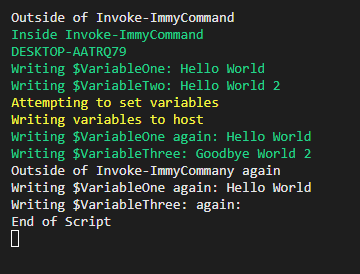
How do you pass variables to Invoke-ImmyCommand?
To pass variables from your meta script to Invoke-ImmyCommand, reference the variable like this:
$using:VariableName
Example:
#Set your variables

$VariableOne = "Hello World"
$VariableTwo = "Hello World 2"

#Do things outside of Invoke-ImmyCommand

Write-host "Outside of Invoke-ImmyCommand"

#Invoke-ImmyCommand to do things on the PC
Invoke-ImmyCommand -Timeout 600 -scriptblock {
  Write-Host "<code>{{EJS281}}</code>$VariableOne: $using:VariableOne" -ForegroundColor Green
  Write-Host "Writing <code>{{EJS282}}</code>$VariableOne again: $using:VariableOne" -ForegroundColor Green
  Write-host "Writing <code>{{EJS283}}</code> of Invoke-ImmyCommand again"
Write-Host "Writing <code>{{EJS284}}</code>$VariableThree: again: $VariableThree"
Write-Host "End of Script"
Output: