Reporting

Overview

This document will go over available reports within ImmyBot.

Prerequisites

An active ImmyBot subscription or trial

Note

You must have appropriate permissions to view and export reports from ImmyBot.

Navigation

You can get to the Reports by clicking on the Reporting tab on the left hand side of your ImmyBot instance and clicking on the appropriate Report.
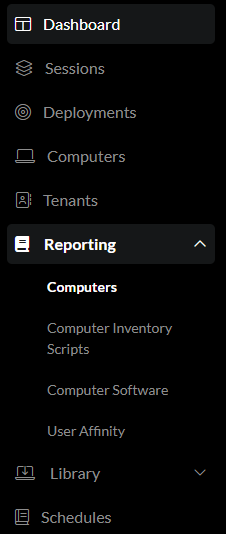
alt text

All Reports have an export option. The export option is to the left of the search bar.

Available Reports

Computers

This report will give you all of the computers available in ImmyBot. You can select various columns by clicking on the column selection menu that is to the left of the search bar. alt text

Computer Inventory Scripts

This page shows the latest inventory results for all computers. In this report you can group the information by column. Simply drag the column to the top left of the table.

Ungrouped

alt text

Grouped

alt text

Computer Software

This page shows all of the global software detected on your computers. You can select various columns by clicking on the column selection menu that is to the left of the search bar. In this report you can group the information by column. Simply drag the column to the top left of the table.

Ungrouped

alt text

Grouped

alt text

Pending Updates

This report lists every pending Windows Update detected across your computers, so you can see patch exposure and compliance at a glance without opening each computer individually.

  • Filter by update category using the bucket cards at the top: Security, Feature & Upgrade, Cumulative & Rollup, Drivers, and Other. Buckets can be combined (select more than one card).
  • Columns include Tenant, Hostname, Title, Severity, KB Article(s), CVE(s), Categories, Downloaded, Reboot Required, Release Date, and Detected At.
  • Like the other reports, you can group by column (e.g. drag Computer to the top) to roll pending updates up per machine, and export the results.
  • Clicking through from a Dashboard card (for example, a "Missing Critical Updates" or overdue-30-days count) lands you here pre-filtered and pre-grouped by computer, so the number the card showed matches what you see in the grid.

alt text

Note

This is the reporting-side view of the Windows Patching feature — see also Windows OS Lifecycles below, and the "Patching" tabs on the Computer and Tenant details pages.

User Affinity

ImmyBot periodically runs whoami /upn on all computers and keeps a rolling list of the last 10 UPNs. It assigns the Primary User of the computer to the "Person" (Synced from Azure) with the matching UPN. For environments without AzureAD, ImmyBot will lookup the UPN of the Person from a Domain Controller in the computer’s Tenant.

Note

The System-level "User Affinity Sync" preference must be enabled for this data to be collected. It’s found under Show More > Preferences, and can additionally be turned on or off per-tenant.

Compliance Tool

An ad hoc compliance-auditing report: pick a target and a handful of Software or Task items, and get a table showing each target’s current compliance (Test) result for those items — without waiting for a full maintenance session to run.

  1. Choose a Target — a computer target (tenant, group, or individual computers) or a tenant target.
  2. Search for and add one or more Software or Tasks to check compliance against, using the item selector.
  3. Optionally set a Date to limit results to actions performed after that date.
  4. When a tenant target is selected, Load Top 10 Non-Compliant Items automatically pulls in that tenant’s most recent non-compliant maintenance items instead of picking them by hand.
  5. The audit table below populates with each target’s result for every selected item.

This is useful for spot-checking "is everyone compliant with X" on demand, or for building a focused compliance view across a specific handful of software/tasks rather than everything in a maintenance session.

Windows OS Lifecycles

A reference table of Microsoft’s published lifecycle dates for Windows product lines and versions — this is general reference data, not tied to your own fleet. Columns: Product Line, Display Version, Edition Group, Release Date, Support End Date, End of Life Date, Extended Support End Date, Latest Build, LTSC (Long-Term Servicing Channel), and a link to the corresponding Microsoft docs page.

Note

This page requires no special permission — it’s open reference data, not tenant-specific.

Use it alongside the "OS End of Life" and "Win11 Ready" badges on the Computers report and computer details pages to see which Windows versions in your fleet are approaching (or past) end of support.

Dashboard

ImmyBot has a Dashboard that you can view session results from. This information is here, because the Dashboard is indirectly related to reporting, however it is it’s own module.

Was this article helpful?