Media is ImmyBot’s library for files you want to reference elsewhere in your instance. This includes installer files, icons for software and maintenance items, and other supporting files that your scripts need on an endpoint. This guide covers how to upload, organize, and use Media, as well as a separate, lightweight way to send files (like logs) to ImmyBot Support.
What is Media?
A Media item is any file uploaded into ImmyBot’s Media library so it can be reused elsewhere. Examples:
- Installer files – an install package or supporting binary that a script downloads and runs on an endpoint
- Icons – images used to visually identify software and maintenance items throughout the interface
- Other supporting files – any file a script needs available on the endpoint at runtime
Once uploaded, a Media item can be selected from a picker wherever ImmyBot supports attaching media such as a software definition’s icon field.
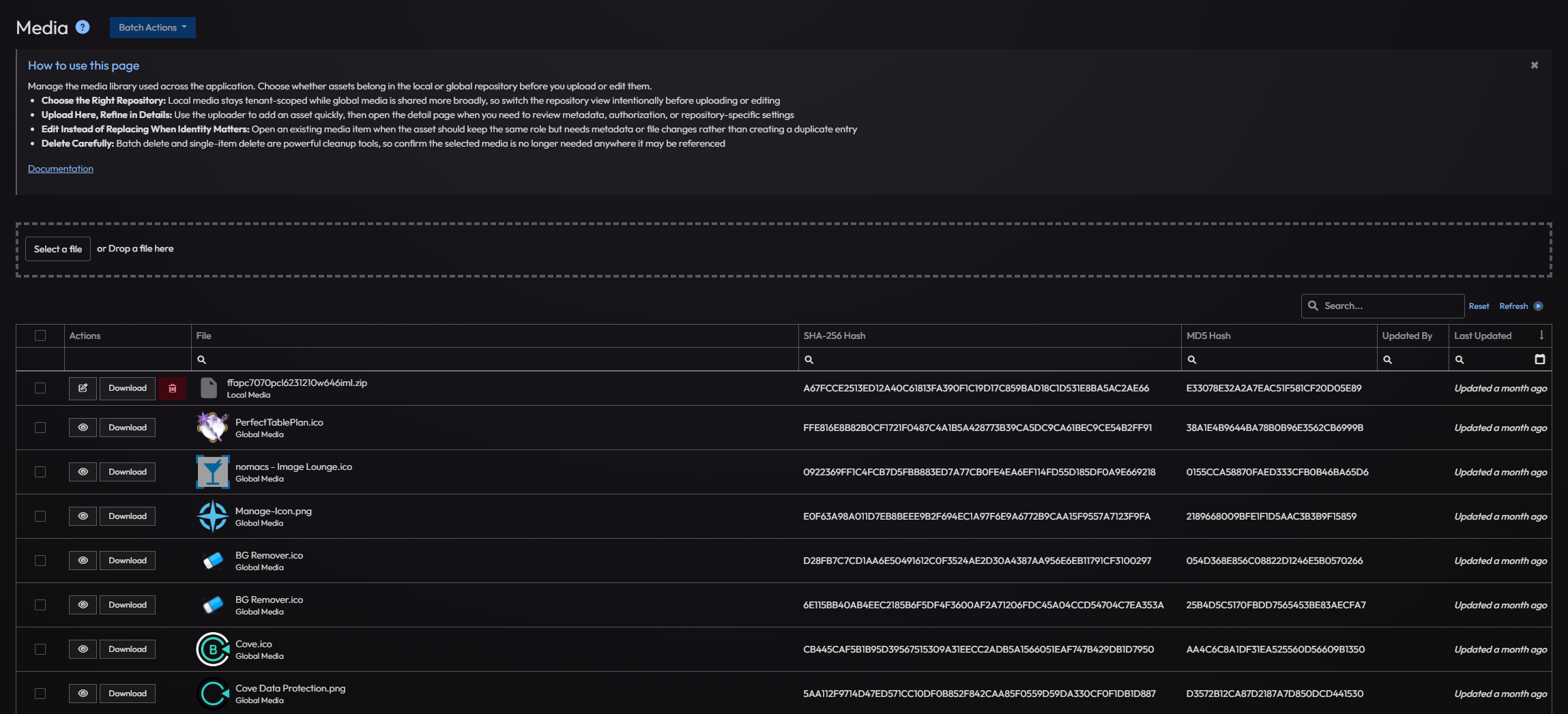
Accessing the Media Library
- Navigate to Show More > Media in the left sidebar.
- You’ll see a list of your uploaded Media items, including file name, hash, who last updated it, and when.
From this list you can download, edit, or delete existing Media items, including in bulk.
Uploading Media
- Navigate to Show More > Media.
- Click New (or use the uploader on the list page).
- Drag and drop your file, or click to browse and select it from your computer.
- Give the item a descriptive Name so it’s easy to find later.
- Click Update.
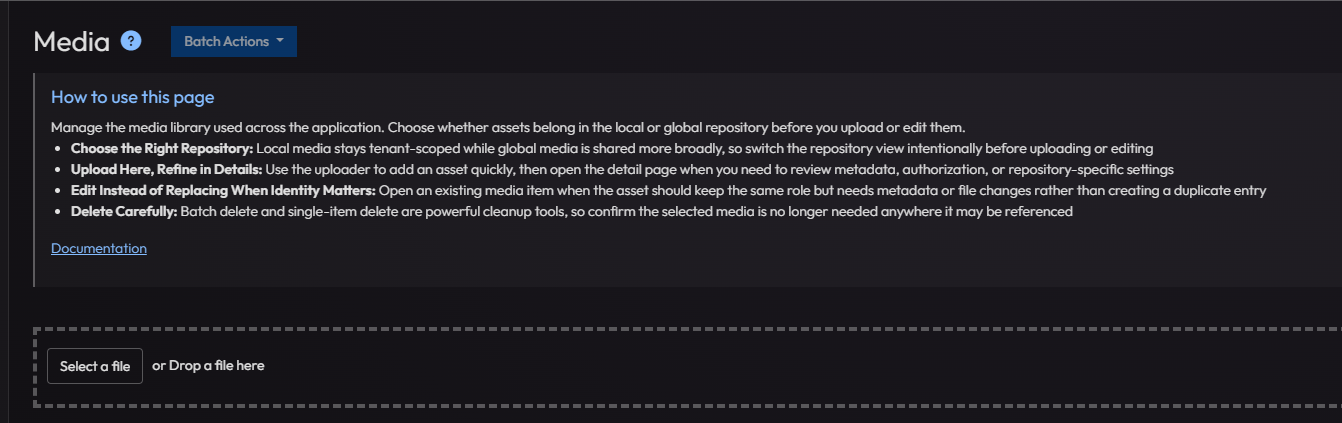
Large files upload in chunks, so you can upload sizeable installers without needing to compress them first. ImmyBot calculates a hash of the file on upload, which is shown in the Media list — useful for confirming the integrity of an uploaded installer.
If you’re uploading an icon (for example, for a software definition), the file must be an image type. Non-image files will be rejected when uploaded under the icon category.
Using Media
As a software or maintenance item icon
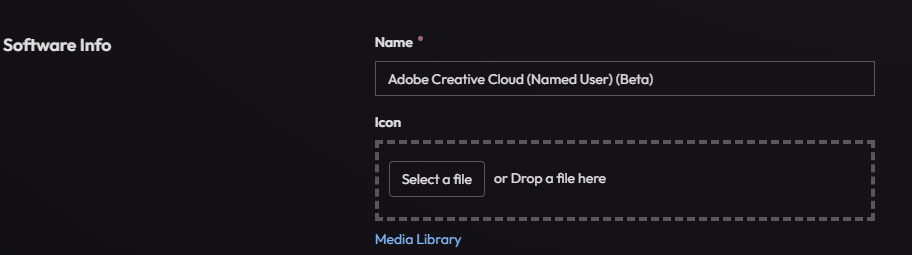
When editing a software definition or maintenance item, look for the icon field on the Software Info section of the details page. Click it to open the Media picker, where you can either select an existing image from the library or upload a new one on the spot.
As a script parameter
Scripts can define a parameter that expects a Media item — for example, an installer file that needs to be present on the endpoint before a script runs. When you configure that parameter on a deployment or maintenance task, you’ll get a Media picker to select which uploaded file the script should use. ImmyBot handles caching the file to the endpoint so your script can reference it locally.
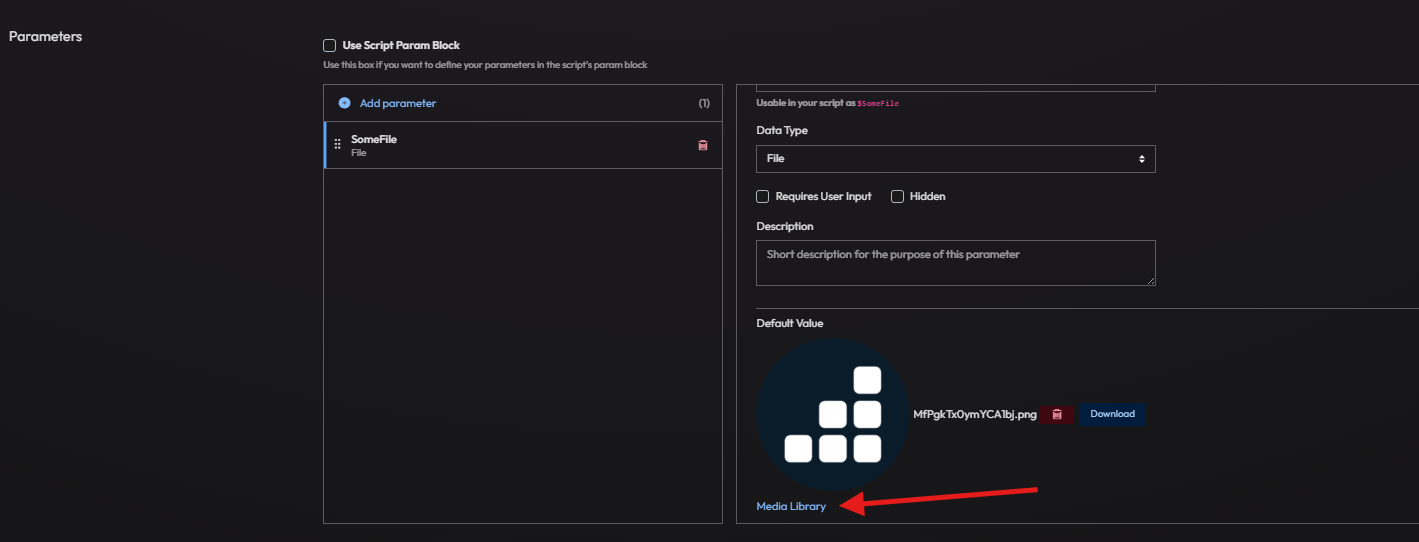
For more on how scripts consume parameters, see Working with Tasks and Creating & Managing Software.
Best Practices
- Use descriptive names for Media items so they’re easy to find in the picker later, especially as your library grows.
- Reuse existing Media where possible instead of uploading duplicate copies of the same installer or icon.
- Check the file hash after uploading an installer to confirm it matches what you expect from the vendor.
- Clean up unused Media periodically to keep your library organized, especially before bulk-deleting — confirm nothing still references the item first.
Next Steps
- Creating & Managing Software – Use Media as software icons and installer files
- Working with Tasks – Reference Media from script parameters
- Role-Based Access Control (RBAC) – Manage who can view and manage Media