Setting up this integration allows you to:
- Import customers from N-Central
- Import computers from N-Central
- Manage all computers in N-Central without deploying the ImmyBot Agent
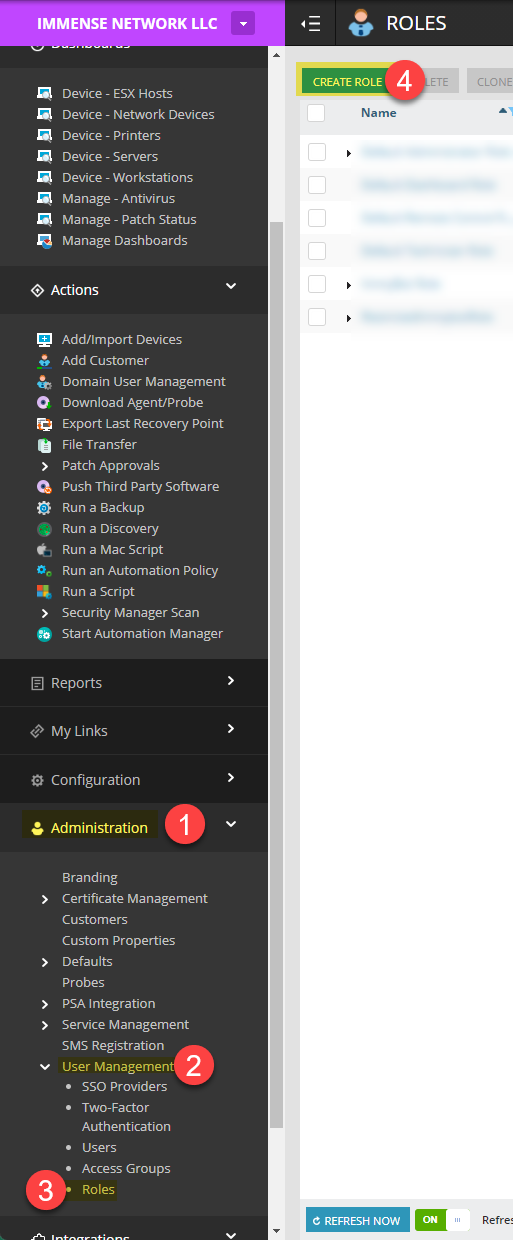
Create ImmyBot Role in N-Central
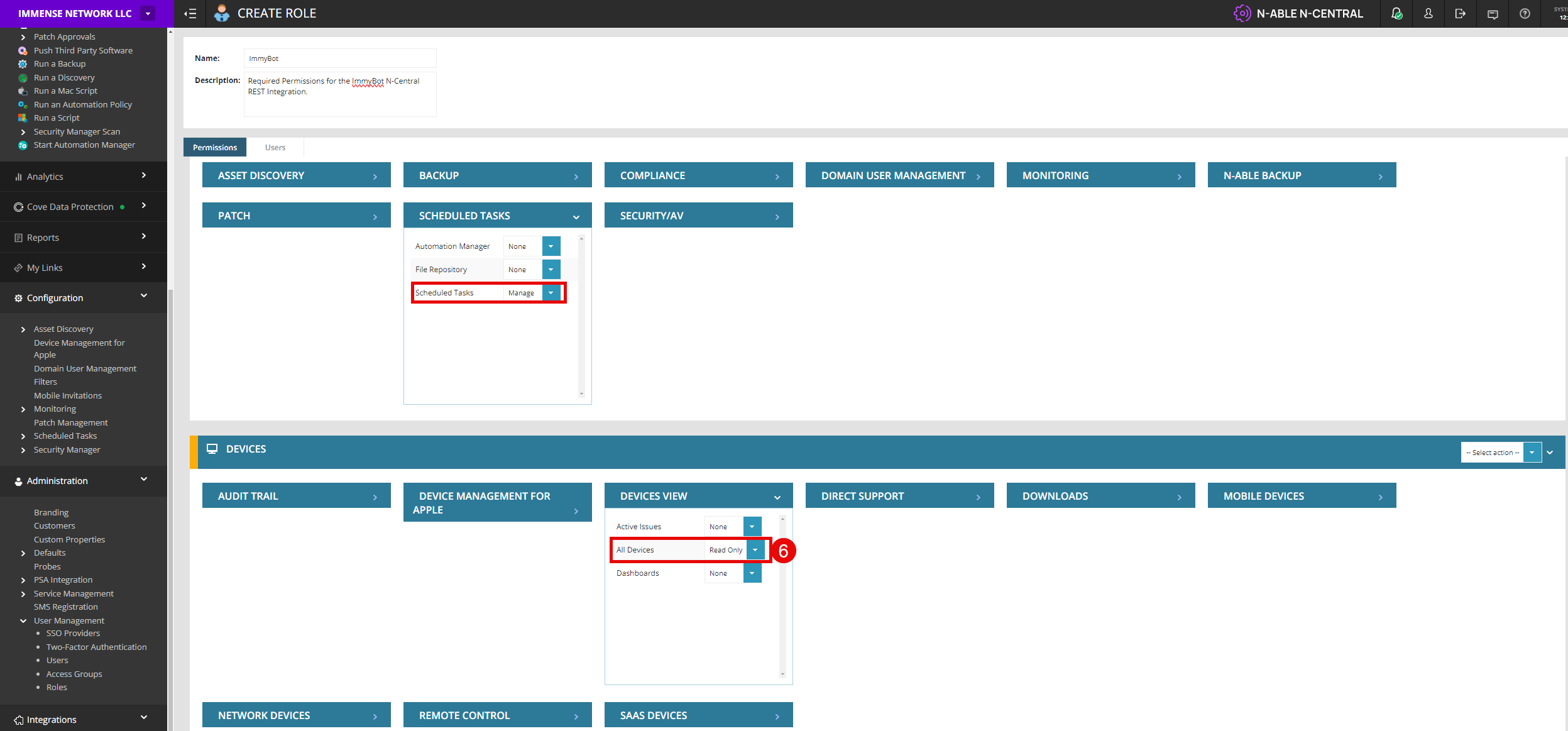
ImmyBot currently requires the following role permissions to operate correctly:
Devices
- Devices View
- All Devices -> Read Only
- Scheduled Tasks
- Scheduled Tasks -> Manage
- Downloads
- N-central Installers Download
Create an "ImmyBot" role in your N-Central instance using above roles.
Create an API-Only ImmyBot user in N-Central
N-Able themselves have an official short guide for doing this we recommend following for this part, but here is a recap:
- Create a new "ImmyBot" user in the instance with the "ImmyBot" role applied.
- Set a password (it is required for now but the api team is working on removing this)
- Under "Access Groups", add an Access Group that covers all of your tenants (or at least an access group that covers the tenants you want to have access to in ImmyBot)
- Under "API Access", ensure "Api-Only User" is checked. 2FA MUST be disabled for the API User!
- Save the new ImmyBot user, and press the "Generate JSON Web Token" button. Copy this value somewhere for later.
IMPORTANT – Right now, the password for the api user needs to be reset every 90 days. Your integration will stop working if you do not reset the password. The api team has also mentioned they are looking to remove this functionality for api users.
Add the necessary ‘RunScript’ Automation Policy
After completing the new API-Only user setup, it’s time time add an Automation Policy to N-Central so ImmyBot can run scripts on the machines.
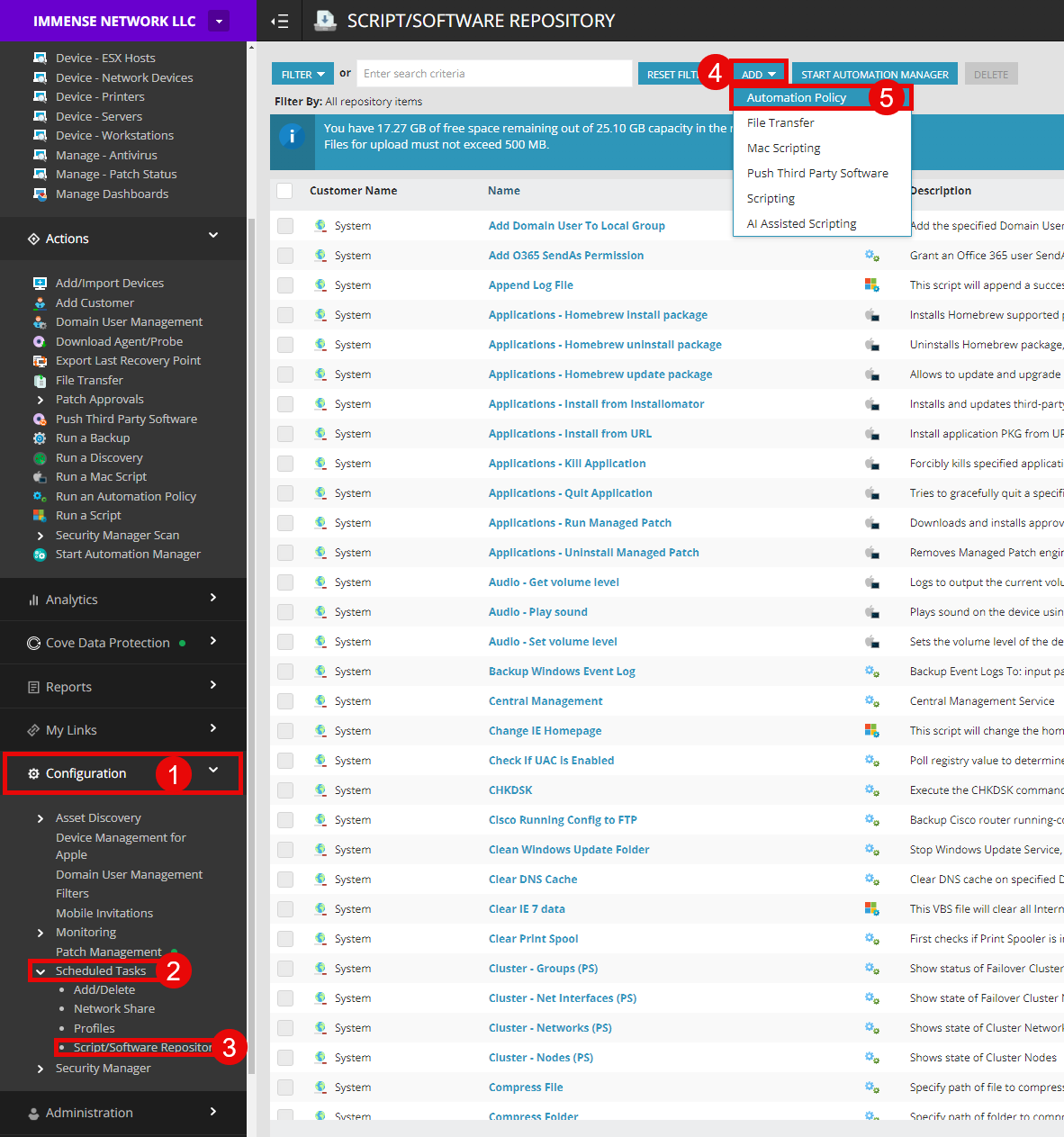
First, navigate to the "Script/Software Repository" under "Schedules Tasks" beneath the "Configuration" tab in N-Central.
Once at the Script Repository page, select "Add" -> "Automation Policy".
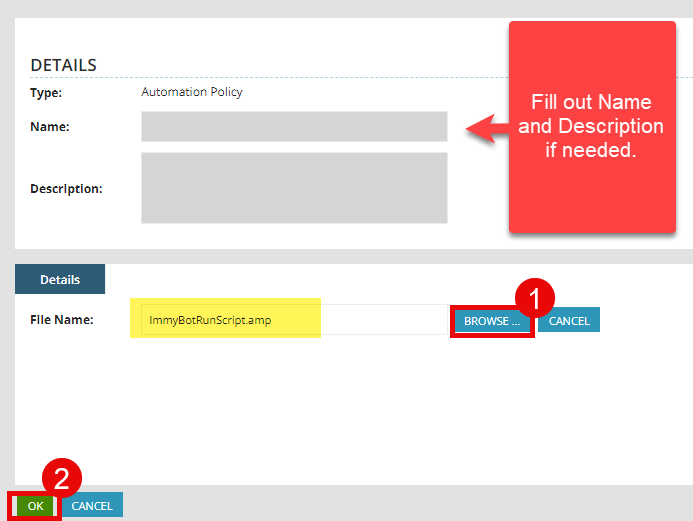
Second, download the ImmyBot RunScript Automation Policy, unzip the file and upload it to your instance. Fill out the Name and Description how you see fit if required.
Last step is to ensure this new automation policy we have uploaded is able to be invoked by the ImmyBot API User.
Find the automation by searching for "ImmyBot", then flipping the Enable API switch. Accept the confirmation modal, then copy the Repository ID for later use.
Repository ID, as this identifier for the automation policy will be unique across every N-Central instance!
Create the integration in ImmyBot
After completing setup in N-Central, it’s time to add the integration to ImmyBot.
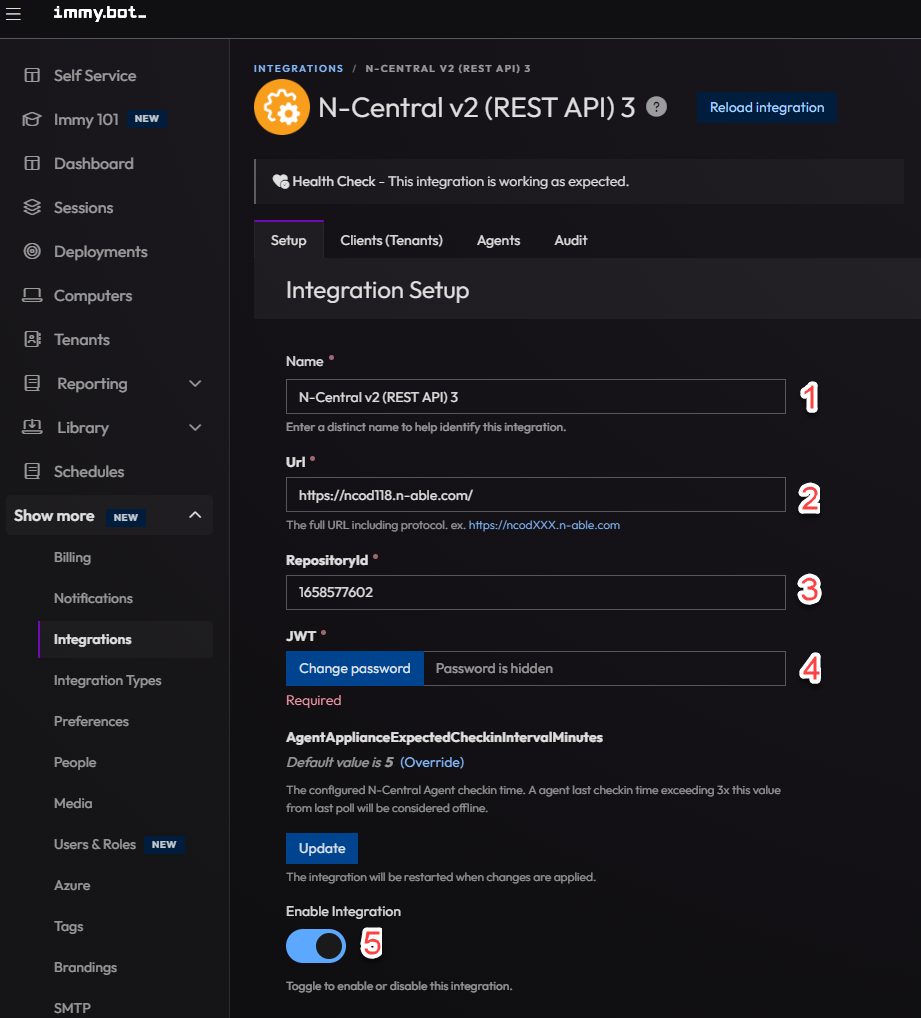
(Show More -> Integrations -> Add Integration -> N-Central v2)
- Input a name you’d like for the integration, followed by your N-Central server URL, and the
JWTyou copied in the steps to make an "ImmyBot" API user. - Then, input the
RepositoryIdgathered from the step before. - Lastly, flip the
Enable Integrationswitch.
Health Check reports an error after enabling the integration, ensure you have completed the above steps correctly. If you continue to have issues, reach out to the community or support for assistance.If your error message contains "Unable to validate UI session: javax.validation.ValidationException: Unable to validate UI session.", then reset the password on your api user and generate a new JWT. This is a limitation imposed by N-Central
Import your customers
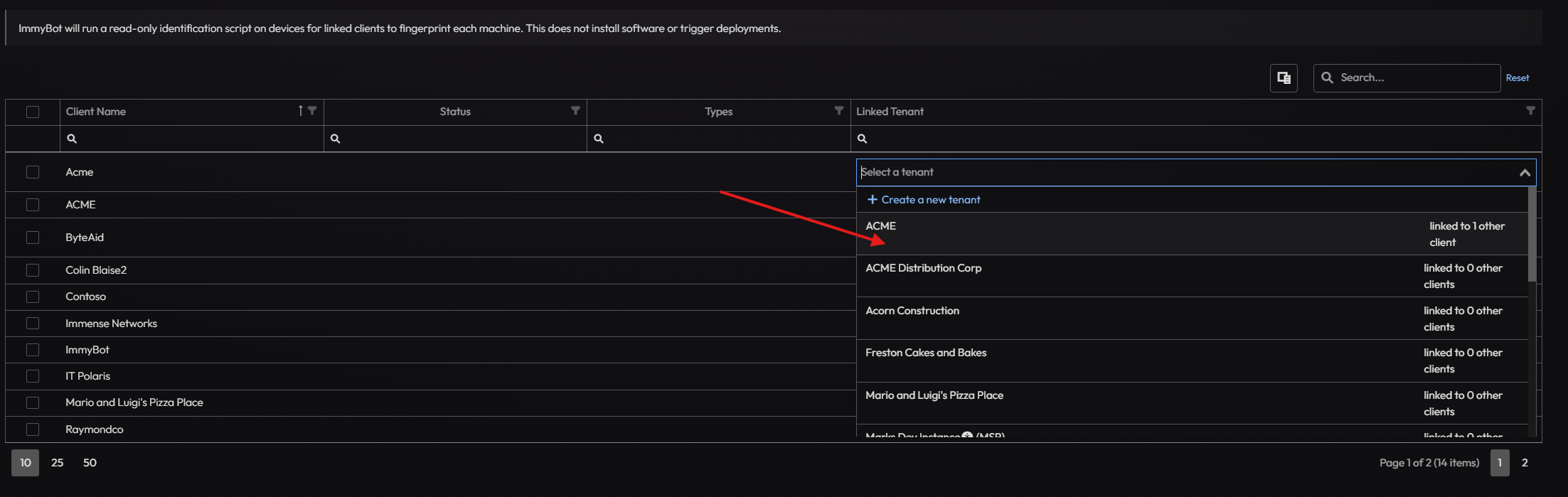
- From the N-Central Integration screen click on Clients
- Link your MSP tenant manually first
- You can bulk Create tenants or manually link tenants between ImmyBot and N-Central
- Alternatively, ImmyBot will suggest tenants that it thinks are the correct ones to link
Alternatively, you can create/map only certain customers. When you map a customer from an RMM, the computers will undergo Identification
Set up the Deployment in ImmyBot
- Click on
Deploymentsand then Click onNew - Select
N-Central Agent v2 (Integration)from the Software / Task drop down - Select the radial button labeled
Installedunder theSoftware should be - Select the
Latestradial button underDesired Version - Select the radial button labeled
RequiredunderTarget Enforcement - Select the radial button labeled
Cross TenantunderTarget Scope - Select the radial button labeled
All ComputerunderTarget Type - Select the radial button labeled
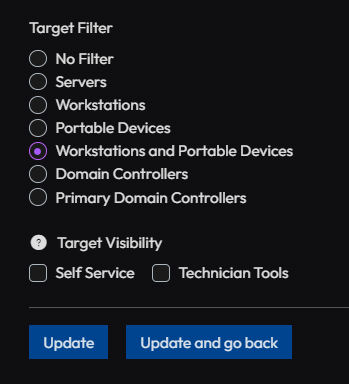
No FilterunderTarget Filter - Click on
Createto save your deployment.
Troubleshooting
My customers are showing up but no computers
Login to N-Central as the ImmyBot User and accept the EULA
Unable to validate UI session
If your error message contains "Unable to validate UI session: javax.validation.ValidationException: Unable to validate UI session.", then reset the password on your api user and generate a new JWT. Passwords are required to be reset every 90 days, even for api users – https://github.com/ToschAutomatisering/PS-NCentral/issues/5. This is a limitation imposed by N-Central that will hopefully be addressed in a future release.