Overview
This document walks you through setting up the Sophos Central integration in your ImmyBot instance. The integration uses a Sophos Central partner API credential, so one integration covers every Sophos tenant you manage.
Capabilities
These are the capabilities listed on the integration’s Setup tab, under Sophos Central integration capabilities:
- Getting an uninstall token for an agent: ImmyBot retrieves each endpoint’s tamper protection password from Sophos Central, so Sophos Endpoint can be uninstalled with tamper protection on.
- Retrieving agent installers dynamically from a URL: ImmyBot downloads each tenant’s own Sophos installer from Sophos Central, so no customer token, product list or deployment parameters are needed. It works on workstations and servers.
- Agent identification by adding an inventory script to be run against all of your endpoints: ImmyBot reads the Sophos tenant and endpoint ids from each computer to work out which Sophos endpoint it is.
- Importing agents from linked clients into ImmyBot: Sophos endpoints from linked tenants appear in ImmyBot with their online status and agent version.
- Mapping clients from the integration to tenants in ImmyBot: each Sophos Central tenant is linked to an ImmyBot tenant.
This integration needs a partner (or organization) credential. If you only have a credential for a single Sophos tenant, the integration will refuse it. Instead, search the global software for Sophos Endpoint Agent and deploy it with the credential in its SophosClientID and SophosClientSecret deployment parameters.
Prerequisites
- An active ImmyBot subscription or trial
- Sophos Central Partner admin access that can create API credentials
- Permissions in ImmyBot for creating and managing Deployments
Process
Create the Sophos Central API credential
-
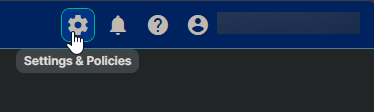
Sign in to Sophos Central Partner and open the Settings and Policies page.
-
Click on
API Credentials.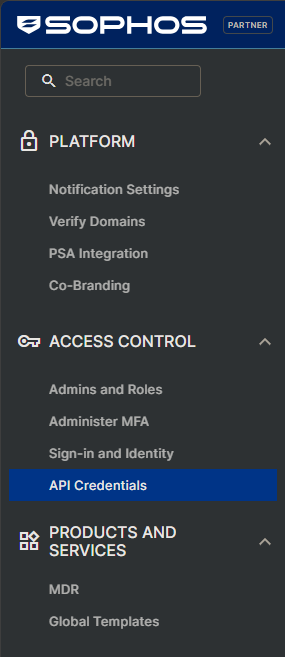
-
Click
Add Credential -
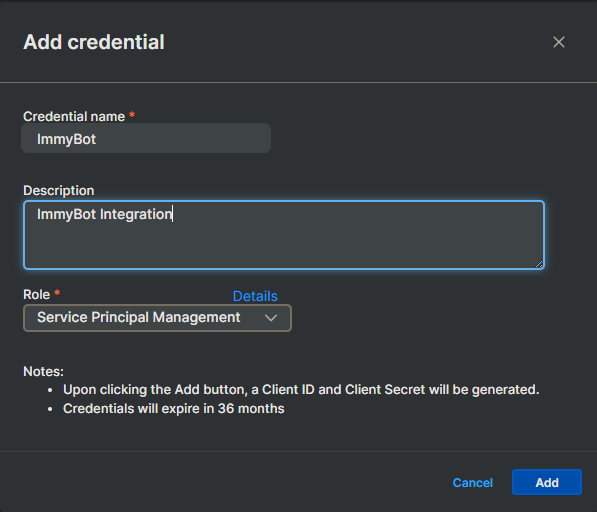
Specify a name for the credential such as ImmyBot and optionally a description.
-
Select
Service Principal Managementfor the role.Role What the integration uses it for Service Principal Management Listing tenants and endpoints, reading tamper protection passwords, and downloading each tenant’s installer A Read-only credential can list tenants and endpoints and read tamper protection passwords. It cannot download installers, so installs fail with a “role does not allow this call” (HTTP 403) error. Super Admin is not needed.
-
Copy the Client ID and Client Secret.

The client secret is only shown once. Store it somewhere safe.
Set up the integration
-
Go to
Show More→Integrations. -
Click
Add Integration. -
Select
Sophos Central. -
Name: enter a name for the integration, for example
Sophos Central. -
ClientId: paste the Client ID from Sophos Central.
-
ClientSecret: paste the Client Secret from Sophos Central.
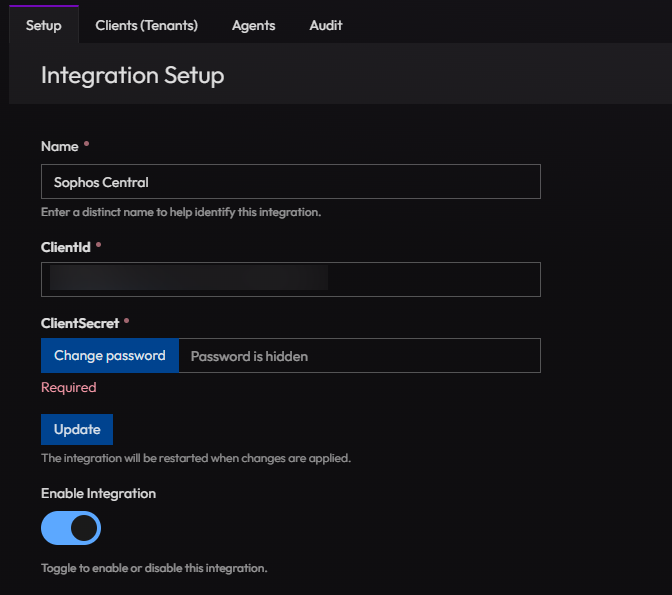
-
Click
Updateto save the credentials. -
Toggle on the Enable Integration switch to enable the integration.
-
Open the
Clients (Tenants)tab. -
Linked Tenant: for each Sophos tenant, select the matching ImmyBot tenant.
The credential type and Sophos data region are detected from the credential, so there is nothing else to fill in. Only linked tenants are checked for endpoints, so Sophos tenants that don’t use Sophos Endpoint (for example, firewall-only tenants) can stay unlinked.
Set up the deployment
- Go to
Deploymentsand clickNew. - Software / Task: search for and select
Sophos Central Endpoint (Integration). - Integration to use: select this integration. If you have only one Sophos Central integration, it is selected for you.
- Software should be: select
Installed. - Desired version: select
Latest. - Target Enforcement: select
Required. - Target Scope: select
Cross Tenant. - Target Type: select
All Computers. - Target Filter: select
No Filter. - Click
Create.
This installs Sophos Endpoint on every computer in every tenant linked on the Clients (Tenants) tab. To limit it, change Target Scope to Single Tenant or pick a narrower Target Type or Target Filter.
The installer is Sophos’s default package for the tenant: it installs every product the tenant is licensed for. On Windows Server, Sophos registers the device as a server and applies the server products.
Sophos updates the agent itself, so ImmyBot shows the latest version as 1.0 and treats any installed Sophos agent as up to date. ImmyBot installs Sophos where it is missing and never runs an update.
Known limitations
- Restart after uninstall: after an uninstall, Sophos requires a restart before it can be installed again. If reboots are suppressed, a reinstall fails until the computer restarts.
- Organization (enterprise) credentials: supported in the same way as partner credentials, but not yet tested.
Troubleshooting
| Symptom | Cause / fix |
|---|---|
| Saving the integration fails with “These are tenant-level Sophos Central API credentials…” | The credential belongs to a single Sophos tenant. Use a partner credential, or deploy the global Sophos Endpoint Agent software with these credentials in its deployment parameters. |
| Install or version check fails with “The Sophos API credential’s role does not allow this call” (HTTP 403) | The credential is Read-only. Use a credential with the Service Principal Management role. |
| “Provider Sophos Central does not have a client linked to tenant …” | The Sophos tenant is not linked to this ImmyBot tenant on the integration’s Clients (Tenants) tab. |
Install fails with “SophosSetup.exe failed with exit code 1” and the log shows NoPendingReboots fatal / “Restart required” |
A previous Sophos uninstall needs a restart. Restart the computer, or run the session with a reboot preference that allows restarting, then install again. |
| Uninstall fails because there is no Sophos agent for the computer | The computer’s Sophos endpoint hasn’t been identified yet. Check the integration’s Agents tab, or run an inventory on the computer. |
| Uninstall logs “SophosUninstall.exe exited with code 1” but succeeds | Expected: Sophos returns 1 after a complete removal when a restart is needed to finish deleting files. ImmyBot confirms the removal by detecting the software again. |
| “SophosUninstall.exe exit 5: tamper protection is still enabled” | The tamper protection password from Sophos Central did not turn tamper protection off. Check that the endpoint in Sophos Central is the same device (it may have been re-registered), then retry. |
| “The downloaded Sophos installer failed signature validation” | The downloaded file was not a valid Sophos-signed installer (for example, a proxy or SSL inspection replaced it). The file is deleted; check web filtering for *.prod.hydra.sophos.com. |
| Integration shows unhealthy after the client secret was rotated | Update the Client Secret on the integration. |